30 September 2026 · By Sam Thomas
How Automated Data Entry Software Works and What to Look For
Learn what automated data entry software does, how data moves into apps, common uses, accuracy, security and how to choose the right email‑driven solution.
Copy‑and‑paste is still a daily headache for many teams. Here’s a clear picture of how automated data entry software works, where it fits and what to watch for.
Table of contents
- What automated data entry software does
- How information moves from a source into a business app
- Common uses and where data entry automation fits
- Accuracy, exceptions and data protection
- Choosing the right approach for email‑driven admin
- Automated data entry software FAQs
- Conclusion
What automated data entry software does
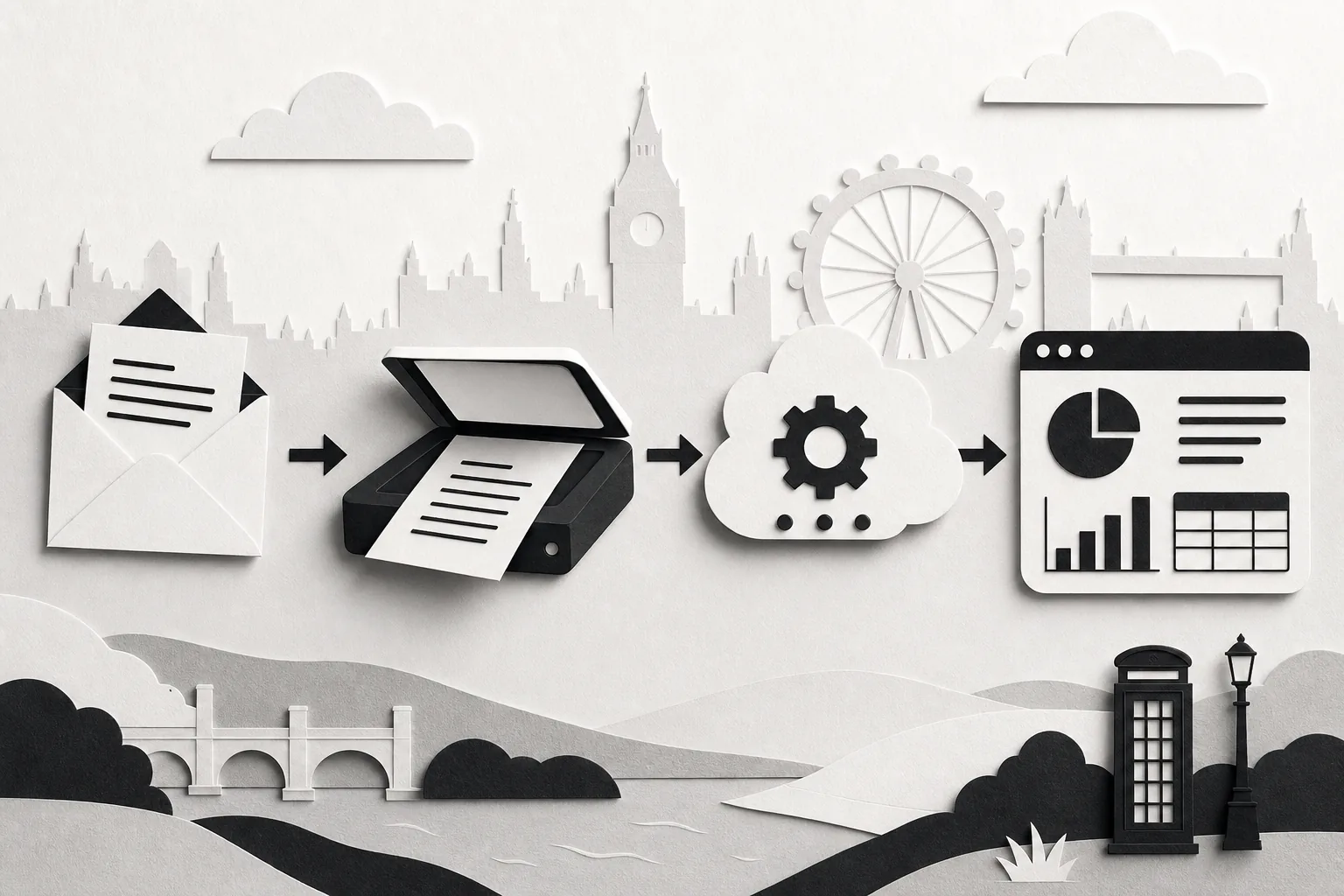
At its core, automated data entry software captures information from a source, a PDF, an email attachment or a web form, and writes it straight into a business system without a human re‑typing it. The workflow usually follows four stages: capture, extraction, validation and routing. Capture can be as simple as an email landing in a shared inbox. Extraction often relies on OCR or AI to turn scanned text into machine‑readable fields. Validation checks the values against business rules, such as invoice totals matching purchase‑order amounts. Finally, routing pushes the clean data into the target app, be it a CRM, ERP or a spreadsheet.
Different technologies solve each stage. OCR turns images into text, AI‑assisted extraction adds context and field‑level confidence scores, while integration platforms move the structured data between apps. When an organisation needs to move data between a spreadsheet and a finance system, an integration platform may be enough. When the source is a messy scanned invoice, a dedicated AI‑powered extractor becomes essential. The difference between Parseur and ForwardThis illustrates why data extraction and email-led actions are distinct jobs. The key is to match the technology to the data’s origin, format and the destination’s API capabilities.
One limitation to watch: UI‑based bots (RPA) can mimic a user’s clicks but break when the screen layout changes. That’s why many teams combine an API‑first approach for stable systems with a lightweight bot only for legacy interfaces.
How information moves from a source into a business app
Most automated data entry platforms move information in four steps. First, the source (email, cloud folder or scanner) pushes the raw file to the platform. Next, an extraction engine, often a combination of OCR and machine‑learning models, creates a structured JSON payload. The payload passes through validation rules you define, such as required fields or numeric ranges. Finally, a connector or API call sends the payload to the destination app, where the record is created or updated.
Some tools, like traditional RPA suites, add an extra step: they open the target application’s UI and type the values in. That works when the app lacks an API, but it adds fragility. Modern integration‑first tools keep the data flow at the API layer, reducing points of failure.
ForwardThis takes the email‑first path, with no workflow builder and no extraction engine: one email starts the job. Forward a supplier’s invoice email to do@forwardthis.io with the instruction “Add this as a bill in Xero and attach the PDF”, and ForwardThis takes the supplier, date and amount from the text of the email, drafts the bill in Xero (it never approves or pays one) and replies with a record of what it did. Attaching the PDF waits for your approval, because Xero cannot remove an attachment afterwards. ForwardThis reads an attachment’s name and type, not its contents, so it suits invoices whose details are in the email itself. For scanned PDFs, a document‑capture tool is the better fit.
Common uses and where data entry automation fits
Sales teams use it for lead capture. An email with a prospect’s details can create a new contact in HubSpot, log a call note and set a follow‑up task, all without a sales rep ever opening the CRM.
Finance departments use it for invoice processing. An attached PDF invoice is read, matched to a purchase order and posted to the accounting system, reducing manual keying.
HR and recruiting workflows benefit as well. New candidate CVs emailed to a dedicated address can be parsed, stored in an ATS and trigger an interview‑scheduling email.
Operations teams often automate inventory updates. A shipping confirmation email can update stock levels in an ERP, ensuring the supply‑chain view stays current.
Because the data source decides the tool, you’ll see three broad buckets: form builders for direct user entry, document‑capture platforms for PDFs and scans, and integration engines for moving data between existing apps. ForwardThis sits in a fourth, email‑driven bucket, turning a simple forward into actions across more than 140 apps you can connect.
Explore the full list of integrations to see which apps you can reach.
Accuracy, exceptions and data protection
Accuracy hinges on three factors: source quality, model confidence and validation rules. Clean PDFs produce higher OCR scores, while handwritten notes often drop below a usable confidence threshold. When a field’s confidence falls short, most platforms route the record to a review queue instead of guessing.
Human‑in‑the‑loop (HITL) review is a safety net. A reviewer sees the original document, the extracted values and the reason for the flag, then either approves or corrects the data. This feedback loop can improve model performance over time.
From a security standpoint, data‑entry automation must obey privacy regulations. Encryption in transit and at rest, role‑based access controls and audit logs are standard requirements.
ForwardThis keeps email content only briefly so that undo can work (24 hours, or 72 hours if something failed), then deletes it. Actions are recorded for 90 days, giving you a clear audit trail without long‑term data hoarding.
Choosing the right approach for email‑driven admin
If your admin work starts in an inbox, an email‑first solution can suit it better than a traditional workflow builder. ForwardThis needs only a plain‑English instruction at the top of the email, “Add this lead to HubSpot and remind me Friday”, and it does the rest. No triggers, no scheduled jobs, no background sync.
For teams that handle many repetitive tasks with the same pattern, a form builder or integration platform may be cheaper. They let you set up a static template once and reuse it thousands of times. However, they require upfront configuration and can feel rigid when each request varies.
When the volume is low but the variety is high, for example, a sales rep forwarding a mix of contracts, notes and calendar invites, an email‑driven assistant offers real value. You can ask for several actions in a single email, and ForwardThis carries them out across your connected apps, asking for your approval first when a change reaches another person, can't be undone or touches many records.
Consider these questions before picking a tool:
- Does the majority of your admin start from email?
- Do you need multi‑app actions in a single request?
- Do you want to be able to undo a change after it is made?
If you answer yes to most, an email‑first approach is likely the best fit. See a step‑by‑step email‑to‑database example.
Automated data entry software FAQs
What exactly is automated data entry software?
It is software that captures data from a source, such as a document, form or email, validates the data and writes it directly into a target business system without manual typing.
Can I use it with any email provider?
Yes, ForwardThis works with any email service because it only needs the email you forward; no background sync or mailbox monitoring is required.
How does the system handle low‑confidence extractions?
Most document‑capture tools send low‑confidence fields to a human‑in‑the‑loop queue, where a reviewer can approve, correct or reject the values before they reach the destination app.
Is my data safe during the process?
With ForwardThis, message subjects and undo snapshots are encrypted, email content is deleted 24 hours after the work is done (72 hours if something failed), and a record of the actions taken is kept for 90 days.
What happens if I need to undo an action?
Most actions can be undone within 24 hours via an undo link in the confirmation email; actions that cannot be reversed are approved first.
Do I need to code to set up workflows?
No coding is needed with ForwardThis: you forward an email with a plain‑English instruction, and the first time a job needs an app, the reply includes a button to connect it.
Conclusion
Document‑capture tools suit work that starts as a scan or a PDF whose contents must be read. For teams whose admin starts in their inbox, ForwardThis turns a forwarded email into finished work in their apps, with a record of every action. Try forwarding a single admin request to do@forwardthis.io.