Blog · 5 September 2026 · By Sam Thomas
How to Set Up Gmail Slack Integration
Learn how to set up Gmail Slack integration, share emails and files, build alerts, fix common issues, and choose the right automation method.

Want to put a full Gmail thread in Slack without copying and pasting it? You can. The native Slack for Gmail add-on handles one-click sharing, while label-based automation works better for repeat alerts.
Follow these steps to connect the apps, send messages and attachments, control what gets posted, and keep private email out of the wrong channel.
Table of Contents
- Step 1: Install Slack for Gmail and Authorize Access
- Step 2: Send Gmail Emails, Threads, and Attachments to Slack
- Step 3: Configure Gmail Filters, Labels, Channels, and Message Formatting
- Step 4: Choose Between Native Gmail-to-Slack Sharing and Custom Automation
- Step 5: Troubleshoot Gmail Slack Integration and Protect Email Privacy
- Gmail Slack Integration FAQ
- Conclusion
Step 1: Install Slack for Gmail and Authorize Access
The first step in a Gmail Slack integration is installing the Slack for Gmail add-on, then connecting both accounts.
Start in Slack. Open your workspace and select Add apps. Search for Gmail, then choose Slack for Gmail. You can also open the Slack Marketplace and select Add to Slack.
Slack may send you to the Google Workspace Marketplace. Select Install, choose the Google account you use for Gmail, and review the access request. Select Continue, then approve the installation.
Now return to Gmail in your browser. Open an email and look at the right-side add-on panel. Select the Slack icon, then choose Connect to Slack. Pick the Slack workspace you want to use and approve the second permission request.
There are two separate approval points here. Google authorizes the add-on in your Gmail account. Slack then connects that add-on to a specific workspace. If you belong to more than one workspace, check the selected workspace before you allow access.
Google describes Gmail as available across desktop and mobile devices, but the add-on setup is easiest in a desktop browser. Gmail connects with other Workspace tools, which is useful context when you plan a wider email workflow.
Workspace admins may restrict app installs. If the install button is missing, ask an admin to approve the app rather than trying to work around the setting.
Step 2: Send Gmail Emails, Threads, and Attachments to Slack
Once Gmail Slack integration is active, you can share an opened email with a channel or direct message from the Gmail sidebar.
Open the email you want to share. Select the Slack icon on the right side of Gmail. The add-on should show places in Slack where you can send the message. Pick a channel or search for a person if the message belongs in a DM.
The native add-on is built for manual sharing. A click sends the email content into Slack, including the thread. That makes it a good fit for a long customer thread reviewed by support, sales, or a project team.
Add a short note before sending. For example:
"Can support confirm the refund policy before I reply?"
That note gives the Slack audience a task. Without it, people may read the email but miss the reason you shared it.
Use a channel when the whole team may need the context. Use a DM for a private handoff or a quick question. Take care with legal, payroll, health, and customer data. A Slack channel may have more members than you expect, especially if it includes guests or people from another organization.
Attachments need a quick check after posting. Open the Slack message and confirm that the file appears and that the intended people can access it. A file may still follow the permissions set in its original storage system.
For a repeated action, ForwardThis takes a different route. You forward an email to us with an instruction such as, "Send this to the client-success Slack channel," and we carry out the supported action. See the email-to-Slack workflow for the email-first version of this process.
The native add-on is better when you want to decide message by message. ForwardThis is worth testing when each email needs a slightly different instruction and you don't want to build a fixed rule first.
Step 3: Configure Gmail Filters, Labels, Channels, and Message Formatting
For a Gmail Slack integration that runs without a manual click, start with a clear Gmail label and a narrow destination.
Create a Gmail label for the messages that should reach Slack. Good labels describe the work, such ascustomer-question,urgent-lead, orproject-update. Avoid a broad label likework. It will create noise fast.
Apply the label by hand at first. Watch what lands in it for a day. If the results look right, add a Gmail filter based on the sender, subject, words in the message, or another condition available in your account.
Next, choose the Slack destination. Keep one work type in one channel where possible. A support alert belongs with support work. A sales lead should not land beside engineering alerts unless the same group owns both tasks.
Slack lets people adjust notification preferences for desktop and mobile.
For automated posts, keep the message short. A useful format might look like this:
- New customer email
- From: sender name
- Subject: email subject
- Preview: short body snippet
- Action: open Gmail and reply
Zapier's Gmail-to-Slack example uses a labeled email as the trigger. Its Slack post contains the sender, subject, and a short body snippet. It also calls out the need to read Gmail messages and post messages to Slack. That permission detail is useful when you compare automation tools.
Formatting helps people scan alerts on a phone. A fixed prefix such as EMAIL or a single emoji can make alerts stand out. Add a bot name only when it helps people tell automated posts from messages written by coworkers.
Don't put the full email body into every automated alert. A snippet gives the team a signal. The person who owns the work can open Gmail for the full context. Full threads belong in Slack when the group needs to review the exact wording, such as a contract question or a sensitive customer complaint.
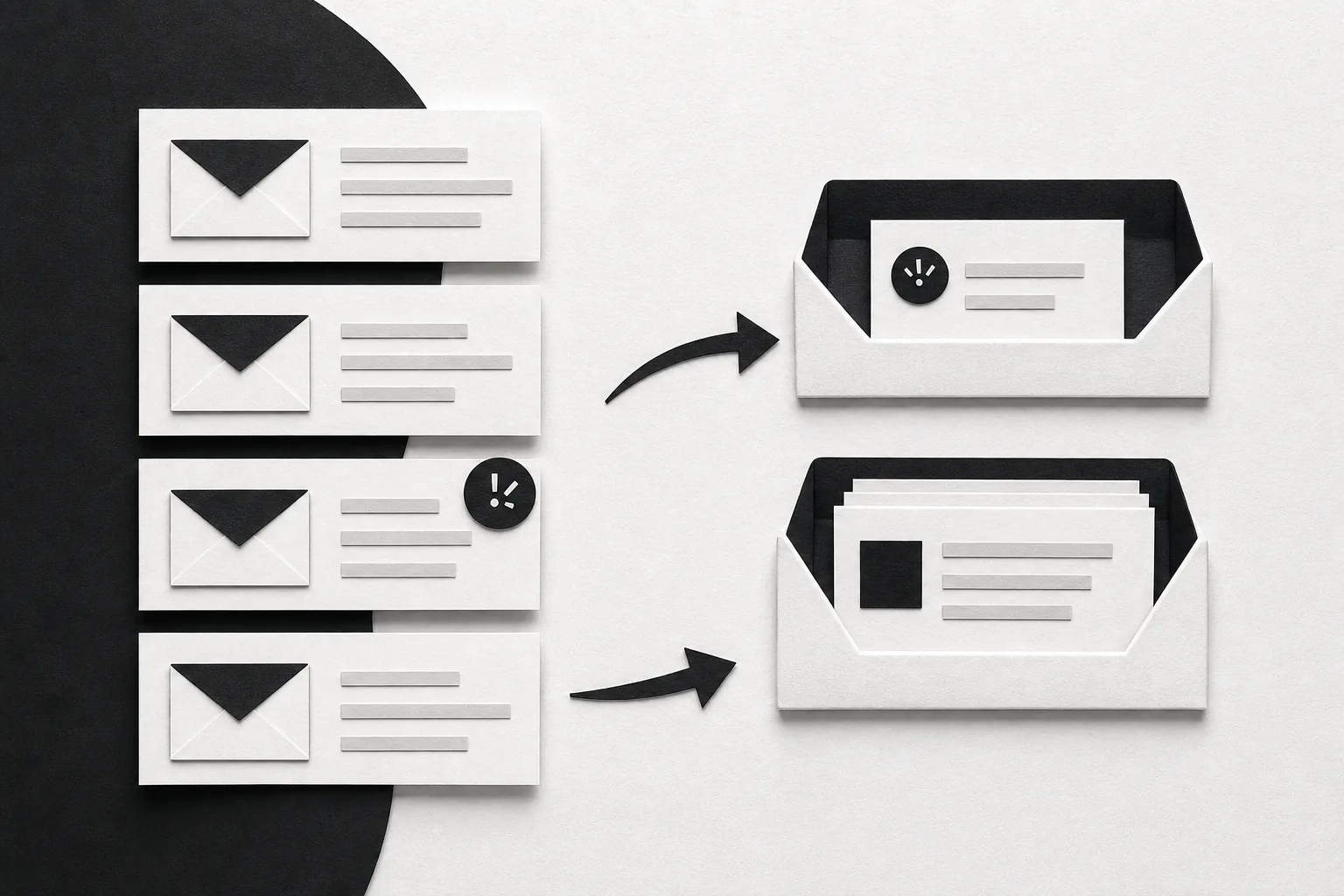
Use the same naming rule in Gmail and Slack. When a label and channel describe the same work, new team members can understand the route without a long handoff document.
Step 4: Choose Between Native Gmail-to-Slack Sharing and Custom Automation
The best Gmail Slack integration depends on whether you want a manual share, a repeat alert, or a one-off instruction.
The native Slack for Gmail add-on has the richest message depth in the researched examples. You open an email and click the add-on. It can send the full content, thread, and attachments to a channel or DM. Choose it for legal review, support escalation, or a project handoff where the full exchange matters.
A label-based Zapier workflow trades depth for repeatability. It watches for a labeled email, then posts selected fields such as the sender, subject, and a short snippet. That fits a shared alert channel where people need to spot new work without reading every email in Slack.
Quickwork uses a starred email as its trigger and posts basic information to a chosen Slack channel. Think of it as a personal "remember this" alert rather than a full collaboration handoff.
| Method | Trigger | What reaches Slack | Best fit |
|---|---|---|---|
| Slack for Gmail | Manual click in an open email | Full email, thread, and attachments | One-off reviews and handoffs |
| Zapier Gmail to Slack | Gmail label | Sender, subject, and short snippet | Repeat alerts with less noise |
| Quickwork | Gmail star | Basic email information | Simple personal reminders |
| ForwardThis | Email plus your instruction | Supported action based on the request | Messy admin jobs that change by email |
The Zapier workflow requires Gmail read and Slack post permissions. Ask your admin to review the app request before approving it.
ForwardThis is useful when the job goes beyond posting an alert. Forward an email and write, "Send this to Slack, save the PDF in Drive, and create a follow-up task for Friday." We act on the instruction across supported apps, then reply by email with what happened. The ForwardThis integrations page shows the wider set of connected tools.
Pick the native add-on when a human should choose the destination each time. Pick label automation when the same type of email should always create the same kind of alert. Pick an email-first service when the instruction changes from one message to the next.
Step 5: Troubleshoot Gmail Slack Integration and Protect Email Privacy
Most Gmail Slack integration problems come from the wrong account, a blocked app, a bad filter, or a destination that no longer accepts messages.
Permission errors
First, check that Gmail is open under the account where you installed the add-on. Then check the connected Slack workspace. If the install or connect button is missing, a Workspace or Slack admin may have blocked app access.
Disconnecting and reconnecting can fix a stale authorization, but don't approve every request without reading it. The app needs enough access to perform its job. More access is not automatically better.
Duplicate posts
Duplicates often come from two routes watching the same email. For example, a manual share and a label-triggered automation may both post it. Test one route at a time, then remove overlapping labels or triggers.
Missing attachments
Check the original Gmail message first. Then check the Slack post and the file's access rights. If the attachment contains private information, don't resend it to a broad channel just because the first post failed.
Messages never arrive
Slack says incoming email can be disabled for a workspace or organization. Admins can control who may use apps and email-related features. Ask an owner to check those controls.
Slack supports email addresses for channels and DMs in some plans, but anyone with the address may be able to send email into that conversation. Treat the address like a secret. Delete it if it spreads beyond the people who need it.
For sensitive work, use a private channel, limit membership, and post only the part the team needs. A short alert with a Gmail link may be safer than copying a full thread into Slack. Before you send, ask one plain question: who can see this after it leaves Gmail?
Gmail Slack Integration FAQ
How do I connect Gmail to Slack?
Install Slack for Gmail from the Slack or Google Workspace Marketplace, then connect it from an opened Gmail message. Choose your Google account and Slack workspace during authorization. After approval, open the add-on sidebar in Gmail and test it by sending one message to a private Slack channel.
Can I send a full Gmail thread to Slack?
Yes, the native Slack for Gmail add-on can send the full email content, thread, and attachments described in the setup tutorials. Open the message, select the Slack add-on, choose a channel or DM, and add a note if your team needs a clear task.
How do I send only certain Gmail emails to Slack?
Use a Gmail label or filter to mark the messages that should trigger a Slack alert. A label-based automation can then watch that group instead of your whole inbox. Test the rule with a small set first, because a broad filter can fill a channel with messages nobody needs.
Why isn't Gmail posting to Slack?
The usual causes are a blocked app, the wrong connected account, a disabled incoming email feature, or a trigger that no longer matches. Check the Gmail label or filter first. Then confirm the Slack workspace and ask an admin whether app access or incoming email is restricted.
Is it safe to connect Gmail and Slack?
It can be safe when you limit access and control the destination. Review the requested permissions, use private channels for sensitive work, and avoid sending full threads when a short alert will do. Remember that Slack members may see anything posted to their channel, including attachments.
Can ForwardThis send Gmail work to Slack?
Yes, ForwardThis can act on an email instruction that asks for a supported Slack action. Forward the message and write what you want done, such as "Send this to the project channel." It differs from a fixed Gmail Slack integration because each request can carry its own instruction.
Conclusion
Use Slack for Gmail when you need to share a full thread by hand. Use a Gmail label when the same kind of alert should post on its own. If the work changes with every email, try ForwardThis with one real message and a plain instruction. That gives you a low-risk test before you build another rule.