30 August 2026 · By Sam Thomas
Gmail Salesforce Integration: Setup Guide
Set up Gmail Salesforce integration, install the Chrome extension, log emails, sync activities, use Inbox, and fix common visibility issues.
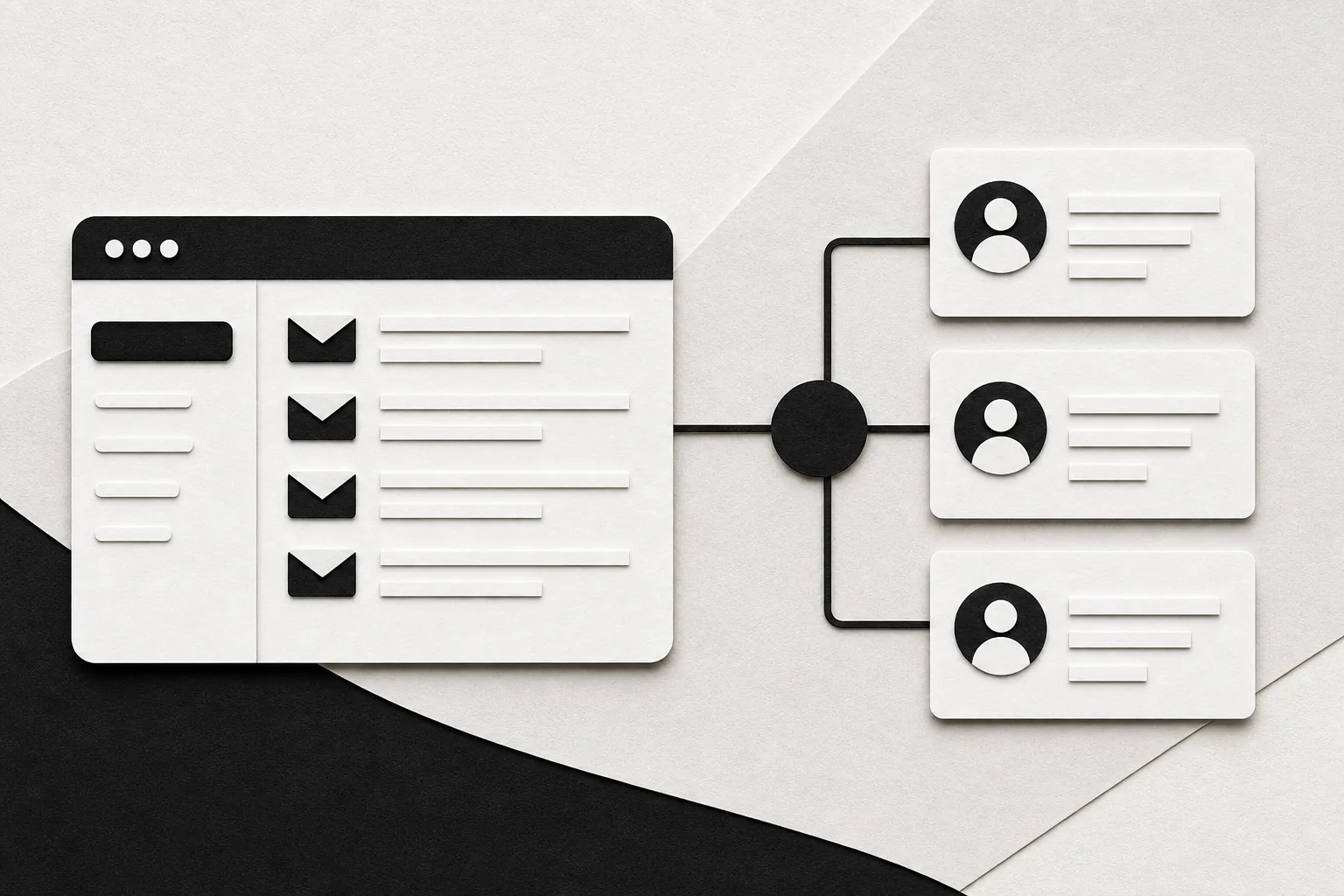
Gmail and Salesforce can work side by side, but the setup has a few traps. Most connectors still need a human click to log an email. Follow these steps to enable the native link, connect the Chrome extension, capture activity, and decide where ForwardThis fits when email creates work beyond Salesforce.
Table of Contents
- Step 1: Check Requirements and Enable Gmail Integration in Salesforce
- Step 2: Install and Connect the Salesforce Chrome Extension
- Step 3: Configure Email Logging and Einstein Activity Capture
- Step 4: Use Salesforce Inbox in Gmail for Everyday CRM Work
- Step 5: Customize the Gmail Pane, Roll Out the Integration, and Troubleshoot
- FAQ
- Conclusion
Step 1: Check Requirements and Enable Gmail Integration in Salesforce
Start with the account and browser checks for your Gmail Salesforce integration. Fixing these first saves you from chasing a blank pane later.
You need Google Workspace with a custom domain. A personal address ending in @gmail.com doesn't meet the stated requirement. Use Chrome 97 or later, and allow third-party cookies. The native setup doesn't provide a connector for Safari, Firefox, or other browsers.
You also need access to Salesforce Setup. If your company controls the Google domain, a Google Workspace administrator may need to approve the connection. Your Salesforce login and Gmail login should use the same Google account when the integration asks you to link them.
| Check | What to confirm | If it fails |
|---|---|---|
| Email account | Google Workspace with a unique company domain | Ask your domain admin about an approved account |
| Browser | Chrome 97 or later with third-party cookies allowed | Update Chrome and review cookie settings |
| Salesforce access | You can open Setup and change email settings | Ask a Salesforce admin to do this step |
| User identity | The Gmail and Salesforce accounts match | Sign out and retry with the correct account |
In Salesforce, open Setup from the gear menu. Search for Enhanced Email in Quick Find, then enable it if it isn't already on. Update the Email Message page layout so users can see the Related To field. Remove the Parent Case field unless your team uses Email-to-Case.
Next, search Setup for Gmail Integration and Sync. Turn on Gmail integration. If shown, enable the setting that lets users access Salesforce records from Gmail. You can also keep Gmail and Salesforce connected so users don't have to sign in each time their Salesforce session expires.
By now you should have Gmail integration enabled in Salesforce, with Enhanced Email ready to relate messages to CRM records.
Step 2: Install and Connect the Salesforce Chrome Extension
The Salesforce Chrome extension puts a Salesforce pane beside your Gmail messages. It helps you find matching records without opening a second tab, but it doesn't remove every manual step.
Return to Salesforce Setup and open Gmail Integration and Sync. Select the link to get the Gmail integration. Confirm the prompt, then continue to the Chrome Web Store. Choose the Salesforce extension and select Add to Chrome, followed by Add extension.
Open Chrome's Extensions menu and pin the Salesforce extension. The pin makes it easy to reach when the pane disappears or you need to reconnect. Be careful here. The Chrome Web Store contains many Salesforce-related extensions, so verify the publisher and requested permissions before installing anything.
Now open Gmail and select the Salesforce icon. Choose Log in to Salesforce. Follow the sign-in prompt, select your Salesforce account, and allow the requested access to email and calendar. If your org uses a custom domain, choose the custom-domain login option and enter the correct domain.
The pane should load on the right side of Gmail. You may see a profile view, notifications, tasks, and a shortcut to open your Salesforce org. Refresh Gmail if the pane doesn't appear. If it still fails, close the tab and sign in again. A domain administrator may need to approve the connection before users can finish linking their accounts.
Don't assume the extension will log every message on its own. Reviews of the available Gmail and Salesforce options found that most still rely on a user selecting Log Email. The Salesforce Chrome Extension can show records and let you create records, but the email capture action remains manual.
By now you should see the Salesforce pane in Gmail and be able to open a matching contact or lead.
Step 3: Configure Email Logging and Einstein Activity Capture
Your Gmail Salesforce integration can log messages in two ways: a person can click Log Email, or an admin can configure Einstein Activity Capture for supported activity sync.
To log an inbound message, open the email in Gmail and expand the Salesforce pane. The pane checks email addresses against Salesforce records. Review the matches before you save anything. Select the contact, lead, account, opportunity, or other record that should receive the activity.
If the sender isn't in Salesforce, choose Add to Salesforce. Enter the available contact or lead details, save the record, then return to the message. Select Log Email and relate the message to the new record. This two-part check prevents a message from sitting on the wrong record.
Outbound messages work in much the same way. After you send an email, the pane can ask whether you want to log it. Pick the records that belong on the activity timeline and select Log. If you turn off the reminder, older messages won't be logged automatically. You will need to open them later and do it yourself.
For broader capture, open Setup and search for Einstein Activity Capture. Create a configuration that defines which users are included and whether Salesforce should capture emails, events, contacts, or a selected mix. Decide how far back the first sync should go. Add excluded addresses or internal domains when those messages shouldn't enter CRM activity.
Users may need the Einstein Activity Capture permission set as well as membership in a configuration. With user-level authentication, each person must connect their email and calendar account once. Explain this clearly in your rollout message. Otherwise, users may think the sync is broken when they simply haven't completed the connection.
Check the data model before you turn on broad capture. Matching normally starts with people records, then checks related business records before updating the activity. Sensitive messages deserve a policy too. Header-only capture can show that a conversation happened without storing the subject and body in Salesforce, where that option is available in your setup.
There is a trade-off. Captured activity may appear on Salesforce timelines without behaving exactly like manually stored CRM data in every report or automation. Test the fields and reports your team depends on before you promise full reporting coverage.
Use manual logging when the record choice needs human judgment. Use Einstein Activity Capture when your rules are clear and your team needs wider email or calendar coverage. Neither choice should be made without a short test using the same record types your reps handle each day.
If your goal is a specific action after an email arrives, ForwardThis can take a different path. Forward an instruction such as “Add this person to Salesforce and remind me Friday,” then let it carry out the supported work across connected apps. See the available ForwardThis integrations before deciding whether the native Salesforce setup covers the whole job.
By now you should know which messages are logged by a click, which activities are captured by policy, and which data should stay out of Salesforce.
Step 4: Use Salesforce Inbox in Gmail for Everyday CRM Work
Salesforce Inbox adds more tools to the Gmail Salesforce integration, but it has its own license and permission limits. It is available only in the Salesforce Lightning interface.
In Setup, search for Permission Sets. Find the Inbox permission set that matches your Salesforce license. Open it, choose Manage Assignments, and assign it to the users who need Inbox. Don't skip this step. A user may have the Gmail pane and still lack the Inbox features.
After assignment, configure the email application pane. Use application pane layouts to choose the objects and fields users see. By default, only the first three fields show in the pane. When a user opens the full record, Salesforce uses the related page layout instead.
Inbox can help with routine work inside Gmail. Users can open tasks and mark them in progress or complete. They can create records through global actions, including contacts, leads, opportunities, cases, and custom objects that an admin has made available.
For a custom object, create a global action with that object as the target. Add the fields users need, then place the action in the publisher layout used by the Gmail integration. Make sure the object allows activities if users need to log email against it. It may also need a tab and searchable settings before users can find the record.
Custom Lightning components can appear in the pane too. The component must declare the Lightning Inbox target in its metadata. Add it to an application pane layout, activate that layout, and assign it to the right profile. If the component doesn't appear, check the target first. Then log out of the extension and sign in again.
Inbox also supports email templates and saved shortcuts for common phrases. Use a template for a standard meeting follow-up, then add the details that are unique to the recipient. Some Inbox editions include send-later controls, open tracking, link tracking, and Insert Availability through Google Calendar.
Insert Availability is useful when scheduling has become a long email chain. Set your working days, hours, meeting length, and buffer rules in meeting settings. Insert the available slots into the message. Recipients see open times and can choose one while your calendar changes in the background.
These tools help with CRM work that stays inside Gmail. They don't replace a task system or handle every piece of admin created by an email. If a message also says “Save the proposal in Drive and create an Asana task,” ForwardThis is built for that kind of instruction. You can also see how ForwardThis supports sales teams when one email needs action in more than one app.
Keep the pane small. Show the fields and actions users need during a normal call. A crowded pane turns a quick record check into another form to complete.
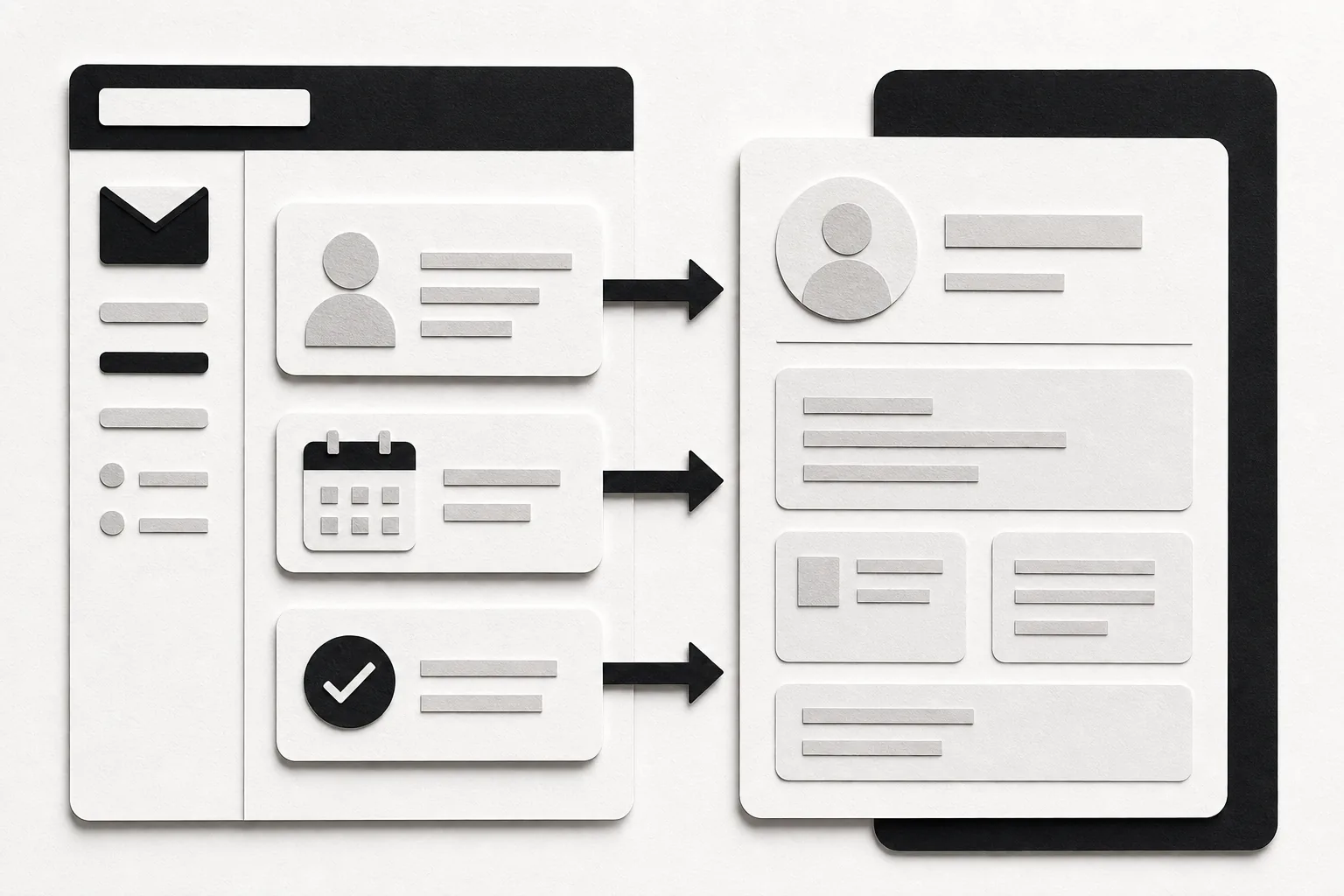
Step 5: Customize the Gmail Pane, Roll Out the Integration, and Troubleshoot
A working Gmail Salesforce integration still needs a rollout plan. Start with a small pilot instead of switching on every feature for every user.
Choose a few Salesforce power users, a team lead, and an admin. Give them two test cases: logging an inbound email to an existing contact, then adding a new contact from an outbound conversation. Test one calendar event too. Record where the match fails and which fields users actually need.
Train with the users' own Gmail accounts and real work patterns. Show the difference between Log Email, Add to Salesforce, and a global action. Tell users what EAC captures without a click. A short written rule helps: “Log customer emails manually unless this activity is covered by the capture policy.”
If the pane is missing, check Chrome first. Confirm that the extension is enabled and pinned. Then check third-party cookies, the Gmail account, and the Salesforce account. If the pane loads but records don't match, search Salesforce directly and confirm the record has the right email address.
If a custom object or component is missing, review its activity setting, tab visibility, search setting, global action, publisher layout, and application pane assignment. Sign out and back in after changing layouts. Cached sessions can hide a correct change.
For a blank login or repeated sign-in request, confirm that the Gmail account matches the Salesforce user. Ask the Google Workspace or Salesforce domain admin to review approval settings. Admins should also review connected app access before authorizing unfamiliar extensions. The connection list can contain old apps that no longer need access, so remove or block them only after checking who still uses each one.
Finally, share a simple support path and collect feedback during the pilot. If users need to forward several messages for a single CRM update, a guide to forwarding multiple emails in Gmail can help them package the context before sending it to ForwardThis.
By now you should have a tested layout, a trained pilot group, and a short list of fixes before wider release. The best setup is the one users can follow without guessing which button does what.
FAQ
Does Gmail Salesforce integration automatically log every email?
No, Gmail Salesforce integration doesn't automatically log every email by default. Users can select Log Email for inbound or outbound messages. Einstein Activity Capture can capture supported email and calendar activity after an admin defines the configuration and users complete any required account connection. Sensitive or unmatched messages may still need a manual review.
Can I use the Salesforce Gmail integration with a personal Gmail account?
Usually, the native Gmail Salesforce integration requires Google Workspace with a unique company domain, not a personal address ending in @gmail.com. It also relies on Chrome 97 or later with third-party cookies allowed. Check your Salesforce edition and ask your domain admin before planning a team rollout.
Why isn't the Salesforce pane showing in Gmail?
The Salesforce pane may be missing because the extension is disabled, Chrome is out of date, cookies are blocked, or the domain admin hasn't approved access. Confirm that Gmail and Salesforce use the same account. Then refresh Gmail, sign in again, and check the extension's permissions before asking an admin to review the connection.
What is the difference between Gmail integration and Salesforce Inbox?
Basic Gmail integration lets users view matching Salesforce records and manually log email from Gmail. Salesforce Inbox adds tools such as templates, scheduling, tracking, and Insert Availability, depending on license and permissions. Inbox also requires Salesforce Lightning and assigned permission sets, so it isn't automatically included for every user.
How does Gmail Salesforce integration handle email logging to a custom Salesforce object?
Yes, Gmail Salesforce integration can support custom-object activity when an admin enables the right object and layout settings. The object may need activities enabled, search access, and a visible tab. The admin may also need to identify it in the application pane or create a global action before users can create or relate records.
Is ForwardThis a replacement for Salesforce Gmail integration?
No, ForwardThis handles a different job. The native connection keeps Gmail activity beside Salesforce records. ForwardThis lets you forward an email with an instruction, such as “Update the Salesforce deal and remind me Friday,” then carries out supported actions in connected business apps. Use each one where it fits your process.
Conclusion
Use the native Salesforce connection when your main need is CRM context and email logging inside Gmail. Pilot it with real messages before expanding capture rules. When an email needs work across Salesforce plus another app, try ForwardThis with one clear instruction and a real email.