Blog · August 22, 2026 · By Sam Thomas
How Do I Forward Multiple Emails in Gmail: Complete Guide
Learn how do i forward multiple emails in Gmail using desktop tricks, filters, and smarter automated alternatives for real admin work.

You've got a Gmail inbox full of client messages, and they all need to reach a CRM, teammate, or shared mailbox before the day ends. The obvious plan, select everything, click Forward, and send, breaks down quickly because Gmail doesn't treat arbitrary selected messages as one normal inline email.
So, how do I forward multiple emails in Gmail? The answer depends on the outcome you need. Gmail gives you Forward as attachment for separate messages, Forward all for one conversation, and filters for recurring automatic forwarding. Each solves a different administrative problem. None is a universal bulk-forwarding system.
Table of Contents
- Why Forwarding Multiple Emails in Gmail Is Harder Than It Sounds
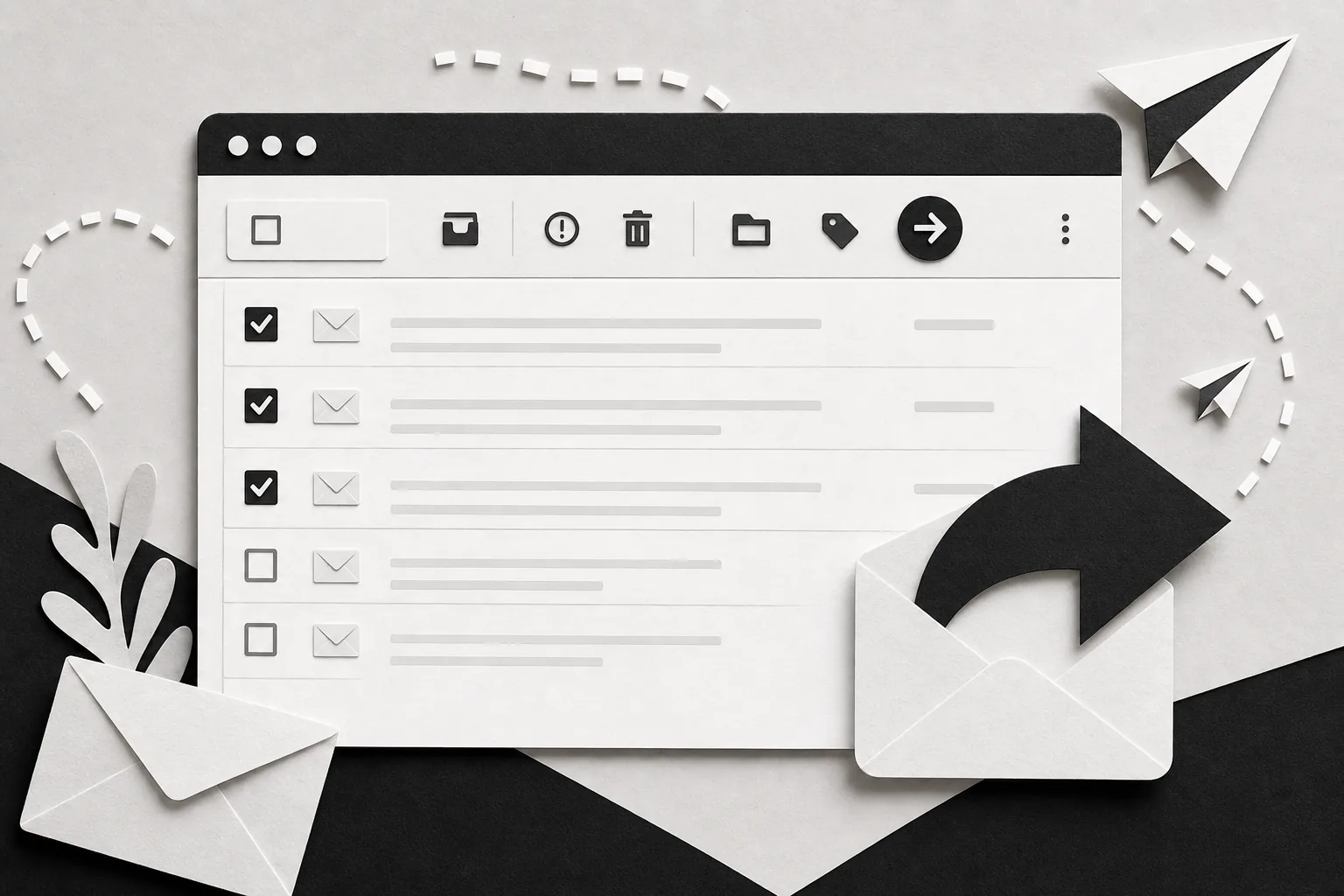
- Selecting and Forwarding Emails as Attachments on Desktop
- Using Forward All for a Single Conversation
- Auto-Forwarding and Filters for Recurring Email Movement
- Workarounds When Gmail's Built-in Methods Fall Short
- Choosing the Right Forwarding Method for Your Situation
Why Forwarding Multiple Emails in Gmail Is Harder Than It Sounds
You have a day's worth of client messages to route into a CRM, teammate's inbox, or shared mailbox. Gmail makes the selection easy, then forces you to decide what those messages should become. The right method depends on the administrative result, not just the number of emails selected.
Gmail separates forwarding into individual messages and conversation threads. For one thread, Forward all preserves the conversation history. For unrelated inbox items, Forward as attachment places each selected message into a new email as its own .eml file. The messages remain separate, even though you send them together. The distinction is outlined in Google's Gmail forwarding documentation.

The three native routes
- Forward as attachment: Use it for a one-time handoff of separate messages. The recipient gets each email as an individual
.emlfile, with its original content and attachments. - Forward all: Use it for one conversation when the complete thread matters. It does not merge unrelated conversations.
- Filters and automatic forwarding: Use them for predictable incoming mail that should keep moving to another address. They do not perform a retrospective bulk export.
Gmail's selection controls also impose a practical limit on the desktop workflow. The checkbox selects up to 50 messages on the current page. If your search returns more, narrow the query, process pages separately, or stop treating Gmail as a migration tool. A CRM import or email operations assistant such as ForwardThis is the more honest choice when the goal is repeatable routing, structured handoff, or historical cleanup rather than a one-time send.
Choose by outcome: a readable thread, separate original files, or an ongoing rule. Gmail handles each case differently, and no built-in option provides a complete bulk-forwarding workflow.
That constraint has shaped Gmail workarounds for years. User discussions described a web interface focused on forwarding individual messages rather than automatically forwarding several selected emails separately. Extensions, scripts, and automation tools remain common because Gmail solves narrow forwarding tasks, not full email operations.
Selecting and Forwarding Emails as Attachments on Desktop
A client needs five separate messages for a case file, not a long thread pasted into a new email. Use Gmail's Forward as attachment option. It creates one outgoing message and adds each selected email as its own .eml file, preserving the original message and its attachments. Google documents this workflow in its official instructions for forwarding emails as attachments.
The desktop click path
- Open Gmail in a desktop browser.
- Search for the messages or open the label containing them. Searching first reduces missed messages.
- Select the checkbox beside each target email on the current page.
- Open the three-dot More menu in the toolbar.
- Choose Forward as attachment.
- Enter the recipient, add a short explanation, and send.
Select messages from the list view. Opening each email and forwarding it separately defeats the purpose of this method. Gmail's controls can look different after an interface update, but the workflow remains the same: select the messages, open More, then attach them to one new email.
Each .eml file is a complete email object. The recipient can review the original body, sender details, message headers, and included attachments as separate items. That makes the format a good fit for legal review, client handoffs, and archival work where message boundaries matter. It is also easier to audit than manually copying several messages into one edited email.

What can go wrong
The selection applies to messages visible on the current page. Gmail commonly limits checkbox selection to 50 messages per page, so a broad search may require narrower queries or separate batches. If the assignment is historical cleanup, repeatable routing, or CRM intake, stop forcing Gmail to act like a migration tool. An email operations assistant such as ForwardThis is the better choice for that outcome.
Attachment size can stop the send. Gmail's standard sending limit is 25 MB, so selected messages with large files may exceed the limit and require another transfer method. Labels, stars, and Gmail folder structure also stay behind. The .eml files preserve message content, not the sender's internal organization.
Recipients need software that handles .eml files correctly. A CRM or shared inbox may ingest the outer email while treating the attached originals as ordinary files, which makes this method better for human review and archival handoffs than automatic data entry. For structured intake, use a tool that routes email into the system where the work happens.
Using Forward All for a Single Conversation
A client approves a project in a long email thread, then asks you to send the full record to a colleague. Forward all fits that job because the messages already belong to one Gmail conversation and the recipient needs its history. It is not a command for collecting unrelated inbox messages. Gmail places the option inside the open conversation, in the message actions menu.
How to forward the complete thread
Open the conversation you want to send. At the bottom of the thread, find the reply controls, open the dropdown beside Reply, and select Forward all. Gmail creates a new draft containing the conversation, with earlier replies quoted beneath later messages so the sequence remains readable.
Add the recipient and explain the handoff. Identify the client, project, or decision involved, then state what the recipient should review or do. A raw thread forces the reader to search through old replies for the actual request.

When Forward all earns its place
Use this method for a support escalation, project decision, or client negotiation where the reply sequence affects the meaning. The recipient can follow who said what and how the discussion developed without opening several separate files.
Do not use it to assemble messages from different conversations. Gmail does not combine selected threads into one equivalent of Forward all. Use Forward as attachment instead, keeping each message distinct and easier to sort.
Long quoted threads can still be difficult to review, especially on a small screen. Repeated signatures, disclaimers, and quoted replies add noise. Attachments from messages in the conversation may also appear differently than expected. Expand the draft before sending and confirm that the important files and message content are present.
For one thread, Gmail is enough. For repeated handoffs, CRM intake, or routing email into a task system, stop treating Forward all as an operations workflow. An email-first assistant such as ForwardThis is the more honest choice when the outcome is structured delivery rather than a one-time copy.
Use Forward all for context, not volume. It suits one conversation with a meaningful history. For a curated collection of separate emails, forward them as attachments instead.
Auto-Forwarding and Filters for Recurring Email Movement
A client's invoices arrive every month, and your finance mailbox needs them without manual forwarding. Gmail can handle that recurring route, but only if you separate automatic forwarding from filters. Automatic forwarding sends incoming mail to a verified address. Filters decide which messages qualify by checking the sender, subject, or words in the message.
Set up an automatic forwarding address
On desktop, open Settings, select See all settings, then open Forwarding and POP/IMAP. Choose Add a forwarding address, enter the destination, and complete the confirmation step Gmail sends there.
After verification, choose what happens to the original message. Gmail can keep it in the inbox, archive it, or remove it after forwarding, depending on the selected setting. Start conservatively and keep the original message in the inbox while testing. Archiving or deleting too soon makes failed routing harder to diagnose.
Build a focused filter
Open Gmail's search options, or create a filter from a representative message. Use conditions that will remain stable:
- From: a particular client, vendor, or internal address.
- Subject: a phrase used in recurring requests.
- Has the words: a project name, reference, or distinctive term.
Select Forward it to, choose the verified address, and save the filter. Test it with a new matching message. This setup works well for predictable streams, such as invoices sent to a finance mailbox or support messages routed to a service address.
Gmail's native forwarding is address-centric. To send matching mail to multiple accounts, create a separate filter for each forwarding address, as described in Gmail's automatic forwarding documentation. A single filter does not broadcast one message to several independent destinations.
Filters primarily handle new matching mail. Gmail may offer retroactive application during filter creation, but they do not automatically process an entire historical inbox. They also do not create separate CRM records, preserve an operational audit trail, or make routing decisions from nuanced instructions.
Use ForwardThis's email-routing help centre when the required outcome is structured delivery into a task tool or another operational system. Gmail filters are dependable for simple recurring routes. Stop using them as the workflow once each message needs interpretation, tracking, or separate downstream handling.
Workarounds When Gmail's Built-in Methods Fall Short
Gmail is excellent at sending messages. It's less capable as a bulk operations layer. Once you need historical batches, multiple destinations, structured CRM updates, scheduled routing, or reliable handling of shared-mailbox work, the question changes from “Which Gmail button am I missing?” to “Should Gmail be responsible for this workflow?”
Start with the lightest workaround
Technical users can build Google Apps Script routines that search Gmail, apply labels, and process matching messages. Browser macros can repeat predictable clicks. Both approaches require maintenance, testing, permission management, and a clear plan for failures. They're reasonable when your team already owns scripting skills, but they're a poor choice for a non-technical user who wants client email recorded in a task tool.
Chrome extensions and Gmail add-ons offer a faster route for batch forwarding. They may create separate forwards, export messages, or add controls Gmail lacks. Treat them as third-party software with access implications, and verify that the extension still works with your account policies and current Gmail interface.
An IMAP-connected desktop client such as Thunderbird can help users manage email files through folders and drag-and-drop operations. That gives you more control over local handling, but it adds another application and doesn't automatically turn email into CRM records or project tasks.
Compare the trade-offs
| Method | Bulk Capacity | Attachment Preservation | Setup Complexity | Recurring Use |
|---|---|---|---|---|
| Gmail Forward as attachment | Current-page selection, commonly up to 50 messages | Original messages arrive as .eml files, with attachments subject to message size |
Low | Limited |
| Gmail Forward all | One conversation | Conversation content is forwarded together | Low | Low |
| Apps Script or browser macro | Depends on the script | Must be designed and tested | High | Strong if maintained |
| Chrome extension or add-on | Depends on the product | Depends on the product | Moderate | Moderate |
| Thunderbird or another IMAP client | Depends on local workflow | Supports handling original email files | Moderate | Moderate |
| Email-forwarding service or no-code automation | Depends on the service | Often designed for structured processing | Moderate | Strong |
The built-in Gmail route remains sensible for a one-time handoff. It becomes inefficient when forwarding is only the first step and someone still has to copy names, dates, attachments, and requests into other systems. At that point, an email-first operations assistant is often more honest than stacking another workaround onto Gmail.
For examples of what that broader automation category looks like, see project management automation from email.
Choosing the Right Forwarding Method for Your Situation
A client sends several unrelated requests, one vendor thread needs review, and recurring messages must reach the right teammate. The best Gmail method depends on the administrative result you need after forwarding, not solely on how many messages you selected.
For a one-time handoff of unrelated messages, choose Forward as attachment. The recipient gets separate .eml files and can open each original individually. It is Gmail's most faithful native option for a curated batch, as long as the combined message stays within Gmail's sending constraints.
If everything belongs to one conversation, use Forward all. The full thread arrives together, so the recipient can follow the reply sequence without opening a collection of separate files.
Recurring mail needs a filter and automatic forwarding. Route a client's repeated requests to a shared address, or send a vendor's messages directly to the responsible person. Gmail requires a separate filter for each forwarding destination when multiple accounts are involved, as noted earlier.

A simple decision rule
- One-time batch: Use Forward as attachment.
- One conversation: Use Forward all.
- Recurring, predictable sender or subject: Create a filter with automatic forwarding.
- Weekly work across several tools: Stop treating forwarding as the completed workflow.
Forwarding copies email. It does not create CRM records, save attachments into the right project, assign follow-ups, or notify a teammate. If those actions happen after every handoff, Gmail is no longer the right place to manage the process.
The destination determines the method. A person reviewing correspondence can work with .eml attachments. A CRM, task manager, calendar, or file system needs structured routing and a defined action. These email automation use cases show why the operational outcome matters more than the number of messages selected.
Gmail works well for occasional transfers. Use Forward as attachment for separate originals, Forward all for thread context, and filters for simple recurring movement. When the process repeats or crosses several business apps, use an email-first operations assistant that performs the next action instead of sending another copy for someone to process.
ForwardThis lets you send or forward an email with a plain-language instruction, then create CRM records, tasks, calendar events, or saved files without building a workflow. Visit ForwardThis and turn the Gmail messages you already handle into completed operational work.