6 October 2026 · By Sam Thomas
Gmail Dropbox Integration: Setup Guide
Set up Gmail Dropbox integration to save attachments to Dropbox or share Dropbox files in Gmail. Follow the steps, then choose an email-forwarding option.
Need to save a Gmail attachment to Dropbox or share a large file without downloading it first? A Gmail Dropbox integration can do both from Gmail. Install the Dropbox add-on, connect your accounts, then use it from the message view or while writing an email.
Table of Contents
- Step 1: Install the Dropbox add-on
- Step 2: Grant access and connect Dropbox
- Step 3: Save an email attachment to Dropbox
- Step 4: Share a Dropbox file in a new email
- Step 5: Pick and check the destination folder
- Step 6: Use the add-on on mobile
- Step 7: Fix common add-on problems
- Step 8: Choose how you want to file email
- Frequently asked questions
- Conclusion
Step 1: Install the Dropbox add-on
Open Gmail in a desktop browser and check the right-hand sidebar. Select the plus icon to open the Google Workspace Marketplace, search for Dropbox for Gmail, then open its listing and select install.
Use the add-on rather than an older browser extension.
Step 2: Grant access and connect Dropbox
Follow the permission prompts, choosing the Gmail account you want to use. Then open an email and select the Dropbox icon in Gmail’s side panel. Sign in to Dropbox when asked and approve the connection.
Check the account names before you save or share a file. If you use more than one Gmail or Dropbox account, a quick check can prevent a document landing in the wrong place. Your setup is ready once the add-on opens with your Dropbox account connected.
Step 3: Save an email attachment to Dropbox
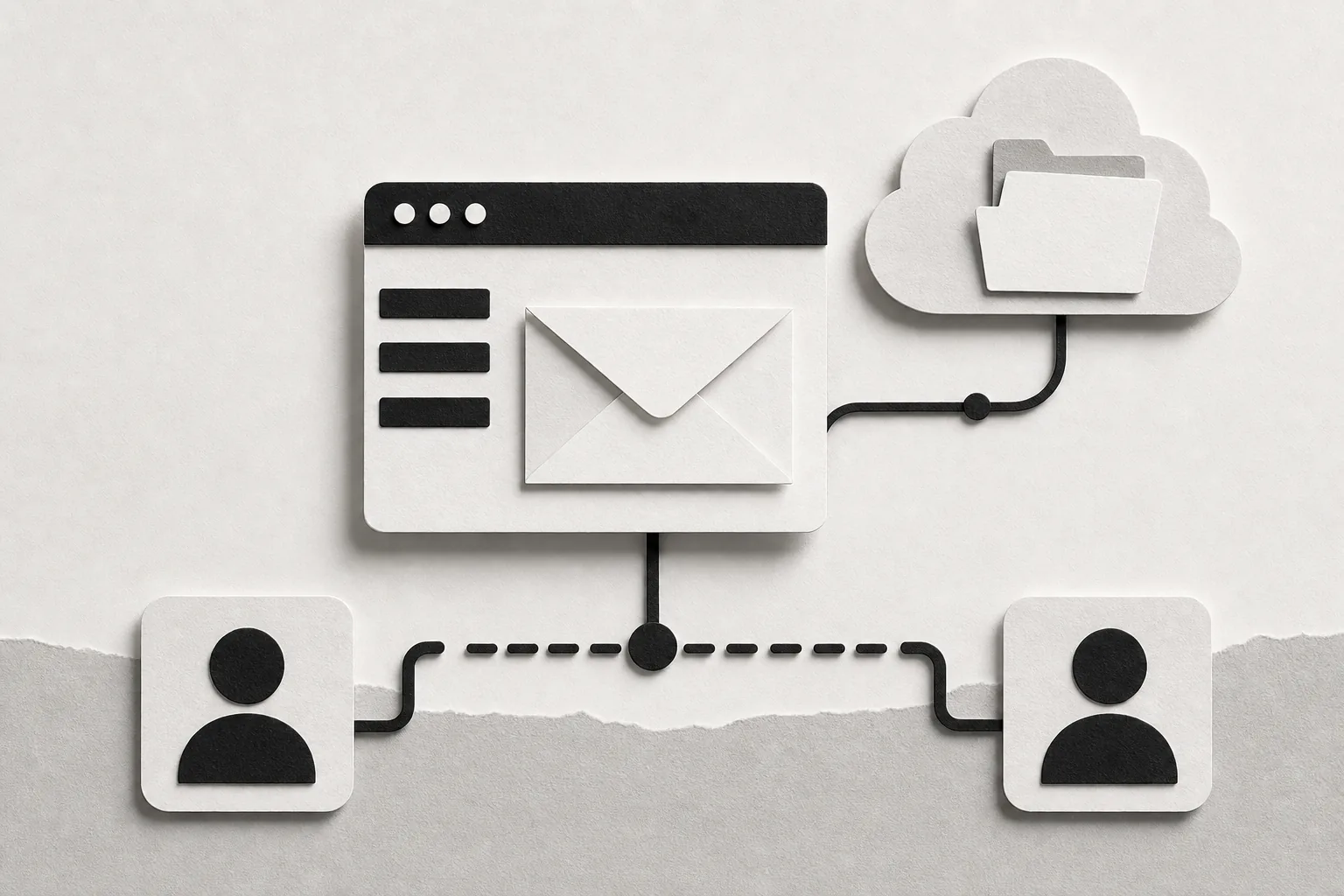
Open a message that has an attachment, then select the Dropbox icon in the right-hand panel. Choose the destination folder and save the file. The email stays in Gmail, and the saved copy goes to the Dropbox folder you picked.
For a phone-based filing option that starts with forwarding an email, see ForwardThis’s Dropbox email integration. The add-on is a good fit when you want to choose a folder manually while viewing a message.
Step 4: Share a Dropbox file in a new email
Start a new Gmail message and select the Dropbox icon in the compose window. Browse or search for the file, select it, then add your message and recipient. Gmail includes the Dropbox file for sharing, so the recipient can open it through Dropbox rather than receiving a downloaded copy.
This is useful when a file is too large for a standard Gmail attachment. Check the selected file before sending, especially if the message includes several links or documents.
Step 5: Pick and check the destination folder
When saving an attachment, choose a folder that matches how you already sort your work, such as a client or project folder. A consistent destination makes it easier to find the file later. The Dropbox for Gmail add-on can save embedded images directly to Dropbox.
After saving, open the chosen folder in Dropbox and confirm the file is there. For shared client work, check the destination before filing so private documents don’t end up alongside general project files.
Step 6: Use the add-on on mobile
The Dropbox for Gmail add-on is available on mobile platforms too. Open Gmail on your phone, view the message, then look for the add-on in the app’s add-on area. The exact screen layout can differ from desktop, so focus on the Dropbox icon rather than expecting the same panel position.
If you often file attachments while away from your desk, ForwardThis’s email-to-cloud-storage option lets you forward a message with a plain-English filing instruction. The first time, connect Dropbox through the reply.
Step 7: Fix common add-on problems
If the Dropbox icon doesn’t appear, check that Gmail’s right sidebar is open and look for the add-on there. Refresh Gmail after installation if it still isn’t visible. When an organisation manages your account, an admin may need to allow the add-on.
If a file doesn’t show up where expected, confirm which Dropbox account is connected and reopen the destination folder. Large files may take a little longer to upload, depending on your connection.
Step 8: Choose how you want to file email
Use the Gmail add-on when you want to save a particular attachment from an open message or share a Dropbox file while composing. It’s a manual choice for each email, not a way to file every incoming attachment automatically.
For a forward-and-instruct approach, send an email to do@forwardthis.io with a request such as “Save the attachment to Dropbox/Client files.” ForwardThis handles the task in connected apps and replies with a record of what it did. It has a free tier with 10 actions each month. See how ForwardThis files email attachments to Dropbox for the steps.
Frequently asked questions
How does Gmail Dropbox integration work?
Gmail Dropbox integration works through an add-on inside Gmail. After installation and account linking, open an email to save its attachment to a Dropbox folder, or select a Dropbox file while composing a message. You choose when to use it. It won’t automatically file every new message that arrives.
Can I send a Dropbox file through Gmail without attaching it?
Yes. Use the Dropbox add-on while composing a Gmail message to select a file for sharing. Gmail places the Dropbox file in the message, so the recipient can access it through Dropbox. This can help when the file is too large to send as a standard email attachment.
Can I save Gmail attachments to Dropbox on my phone?
If the icon isn’t visible, check that the add-on is installed and the right account is connected.
Why can’t I see the Dropbox icon in Gmail?
The icon may be hidden if Gmail’s right-hand sidebar is closed, or the page may need a refresh after installation. Open the sidebar and check for the add-on. If your organisation manages your account, ask its administrator whether the add-on is allowed for your team.
Conclusion
Install the Gmail add-on if you want to save or share files by hand from Gmail. Start with one test attachment and confirm its Dropbox folder. If you’d rather forward an email with a filing instruction, send it to do@forwardthis.io.