12 September 2026 · By Sam Thomas
Notion Mail Is Shutting Down on September 22: What You Need to Do
Is notion mail shutting down? Yes. Learn what ends on September 22, 2026, what stays in Gmail, what to export, and which workflows can replace it.
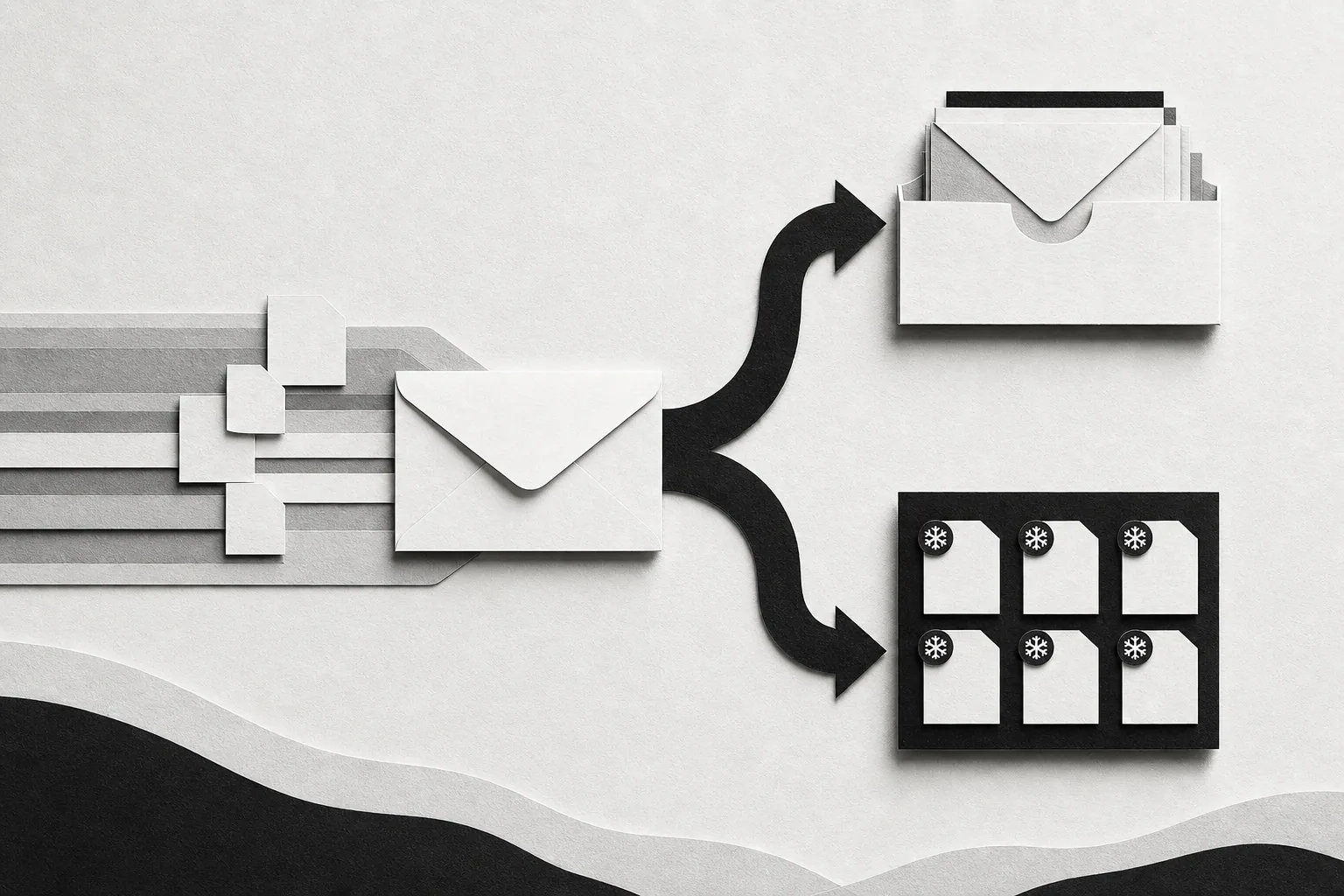
Yes. Notion Mail’s standalone inbox shuts down on September 22, 2026. Your Gmail messages won’t be deleted, but drafts, snippets, reminders, rules, and other Notion-Mail-only data may be lost if you don’t save it first.
The key choice is simple: do you need another inbox, a way to keep emails in Notion, or a way to turn emails into work? The right replacement depends on how you used Notion Mail.
Table of Contents
- What Does “Notion Mail Shutting Down” Actually Mean?
- The Difference Between Notion Mail, Gmail Sync, and Email-to-Notion Workflows
- What to Check Before Changing Your Notion Email Setup
- Usable Alternatives If Your Notion Mail Workflow Changes
- FAQ
- Conclusion
What Does “Notion Mail Shutting Down” Actually Mean?
The phrase “ Notion Mail shutting down” sounds broader than it is. Notion is closing the Notion Mail inbox app, not deleting your Gmail account or your existing email history.
Notion Mail synced with Gmail. That means messages you sent or received through Notion Mail also remain in Gmail. The shutdown affects the Notion Mail interface and the data that lived only inside that interface.
Notion says the final day to save Notion-Mail-only information is September 21. The inbox then shuts down on September 22. Any unsaved data that exists only in Notion Mail can be permanently deleted after the cutoff.
That includes:
- Drafts that have not been moved to Gmail
- Scheduled emails
- Snippet text
- Files attached to snippets
- Auto-label instructions
- Email reminders
- Custom inbox views, sorting, and organization rules
Notion’s own guidance also says that existing synced email databases and their views will remain accessible. The catch is that they will stop receiving new messages after the shutdown. A filtered view may still show old emails, but it won’t keep growing.
Some related Notion features continue. Gmail connections used by Notion AI are separate from the Notion Mail inbox. Related documentation covers these connections.
Mail blocks already placed on Notion pages also remain. Gmail-based agent tools can continue to read, draft, or send messages where those connections are already set up. That distinction matters because “Notion email” can mean several different things.
So, don’t delete Gmail or assume every Notion email feature is ending. Treat the change as the retirement of one email client and one email-to-database path.
The Difference Between Notion Mail, Gmail Sync, and Email-to-Notion Workflows
Notion Mail shutting down affects the inbox app. It doesn’t mean Gmail sync, Gmail search in Notion AI, and third-party email-to-Notion tools are the same thing.
Notion Mail
Notion Mail was an email client connected to Gmail. You could read and write messages in a Notion-style inbox. You could also organize email with views, filters, tags, snippets, reminders, and auto-label instructions.
Its email-to-database feature made selected messages, or messages from a synced view, appear in Notion. That database sync ends with the inbox shutdown. Existing records stay available, but new messages stop arriving.
Gmail sync and Notion AI
A Gmail connector gives Notion AI access to Gmail for search and email drafting. It isn’t a replacement inbox. You won’t use it as a full mail app with the same views, reminders, or snippets that Notion Mail had.
For teams, access also differs by plan and account setup. The Gmail AI Connector has its own requirements, while Notion Mail’s earlier connector worked through a separate connection. Check your workspace settings rather than assuming one connection will replace the other.
Email-to-Notion workflows
An email-to-Notion workflow sends a message into a Notion database through forwarding, an add-on, or an automation platform. It usually focuses on capture rather than inbox management.
Forward-only tools suit a simple job: send an email to a special address and save it in Notion. Tools such as Quicktion fit this model. Automation platforms such as Zapier and Make give you more routing logic, but they take more setup and can be a poor fit if you only want clean email content in Notion.
ForwardThis takes a different route. You keep Gmail, Outlook, Apple Mail, or your current inbox. Then you forward a message with an instruction such as, “Save this in the Acme project in Notion and remind me Friday.” ForwardThis can act on the request across supported apps instead of pretending to be another inbox.
That difference is worth keeping clear. If your goal is to read and send email, choose an email client. If your goal is to archive messages, choose an email capture tool. If each email creates a different piece of admin, choose an action-based workflow.
What to Check Before Changing Your Notion Email Setup
Before changing anything, make a list of what you used inside Notion Mail. The risk is not your main Gmail archive. The risk is the small layer of work habits that never left Notion Mail.
Save Notion-Mail-only data
Start with drafts and scheduled messages. Open each one and move it into Gmail if you still need to send it. Don’t assume a draft in Notion Mail will appear in Gmail just because the original thread does.
Next, review snippets. Copy the text into Gmail templates, a Notion page, or your team’s approved response library. If a snippet includes a file, download that file separately. The attachment may not transfer with the text.
Export your auto-label instructions too. A rule such as “mark messages with urgent client requests as high priority” may be easy to recreate, but only if you still have the wording and intent in front of you.
Review reminders and views
Email reminders set in Notion Mail won’t move into Gmail automatically. Search for messages with follow-up dates and turn them into calendar events or tasks before the cutoff.
Take screenshots or notes of useful views. Pay close attention to:
- Views for important senders or domains
- Filters for unread or urgent messages
- Priority tags
- Groups by sender, domain, or project
- Rules that marked messages for action
You don’t need to rebuild every view. Keep the ones that answer a daily question, such as “Which client emails need a reply?” or “Which messages are waiting on me?”
Check synced databases
Find every Notion database that received email from Notion Mail. Note the source view, filter, target database, and the fields you care about.
Then decide if the database is an archive or an active work queue. An archive can stay as it is. An active queue needs a new intake method before new messages stop syncing.
For regulated teams, ask an admin or compliance lead about an earlier transition date. The general deadline may not be the right deadline for your organization.
Key Takeaway: Preserve the things that help you act on email, not only the email text itself. Drafts, reminders, snippets, and rules are the parts most likely to disappear.
Usable Alternatives If Your Notion Mail Workflow Changes
The best replacement for Notion Mail depends on the job you need done. Don’t choose a tool because it mentions Notion. Choose it because it matches the work that starts in your inbox.
| If you used Notion Mail to... | Look for... | Main trade-off |
|---|---|---|
| Read and write email | Another full email client | You may lose Notion-style views and AI features |
| Save selected messages in Notion | Email forwarding or a Gmail add-on | Less inbox control, but simpler capture |
| Route messages by sender or subject | A rule-based automation tool | More setup and more fields to maintain |
| Turn each message into follow-up work | An email-to-action service | It won’t replace your inbox |
| Keep an Outlook-based process | A forwarding tool that accepts Outlook mail | Native Notion Mail was Gmail-focused |
1. Another email client
If you mainly used Notion Mail to read, write, sort, and reply, you need another inbox. Keep Gmail or Outlook as the source of truth, then rebuild only the views and labels you actually use.
This is the cleanest choice for people who don’t need email records in Notion. It also avoids adding a forwarding address or automation layer to every message.
2. A specialist email-to-Notion tool
If your main goal was “save this message in Notion,” use a capture tool. Forward-only services are easy to understand. You send a message to a destination address, and it becomes a Notion record.
Quicktion uses native email forwarding and supports attachments. That may be enough for a small archive, but check attachment limits and database mapping before moving a large workflow.
Zapier and Make suit conditional routing. You can tell a workflow to act when a sender or subject matches a rule. The cost is setup time. They make more sense when one email must trigger several fixed steps.
3. ForwardThis for email-created work
ForwardThis is a better fit when an email is the start of a job rather than the thing you want to archive. You forward the message and write what should happen next.
For example:
- “Add this person to HubSpot and follow up Friday.”
- “Save the proposal in the Acme folder in Google Drive.”
- “Create a Notion task for this and make it due next Tuesday.”
One instruction can include more than one supported action. You might save an email in Notion, create a task, and file its attachment in Drive. ForwardThis then replies by email with a record of what it did.
That makes it different from an email client and from a basic archive tool. You keep your existing inbox. ForwardThis handles the admin that follows the message.
For a broader look at this category, see AI workflow automation tools. The short version is simple: don’t build a fixed workflow for every five-minute request. Forward the message and state the outcome.
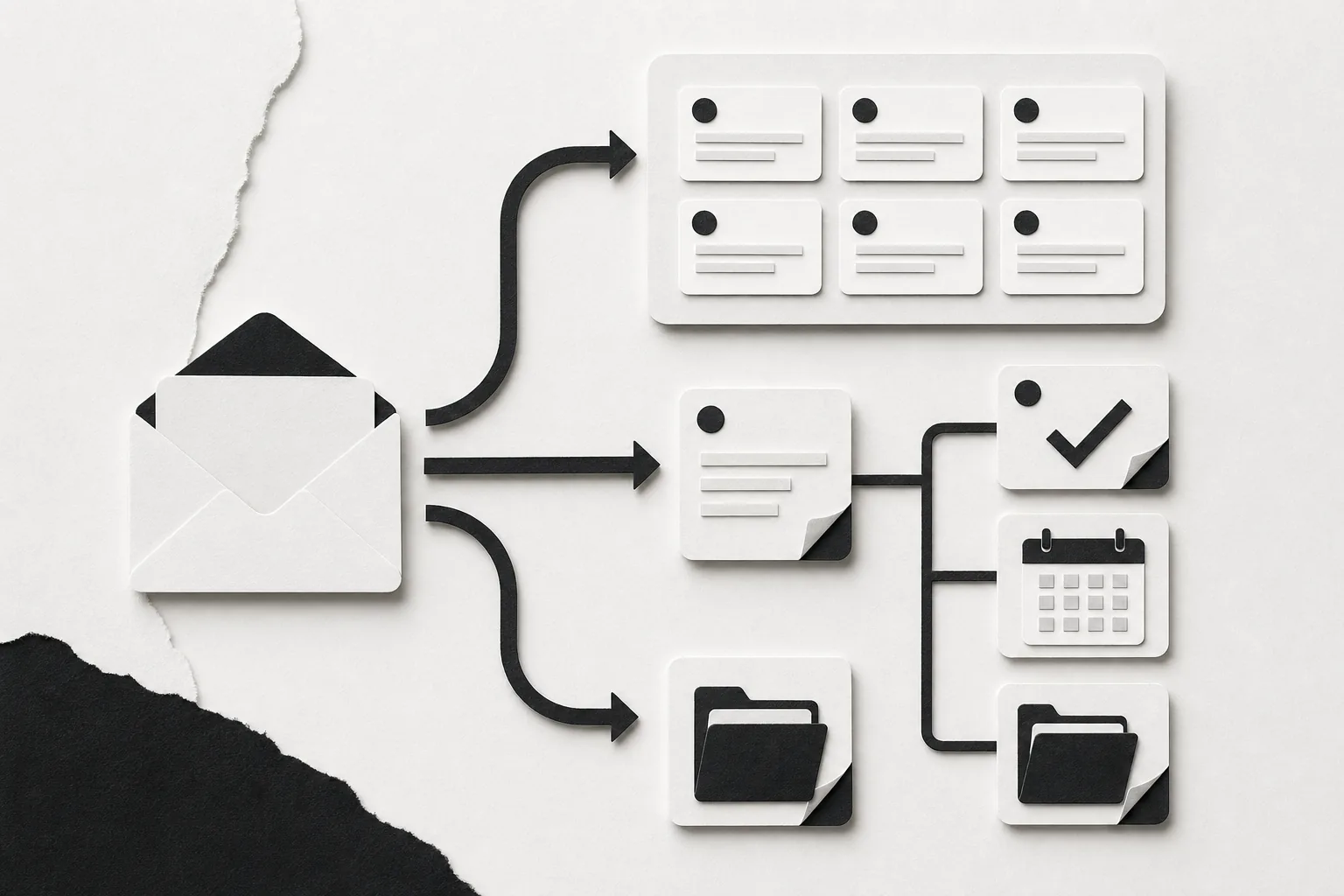 If you want to test that approach, try ForwardThis with a real email. Start with a low-risk task, such as saving an attachment or creating a reminder, then review the result before sending more sensitive work.
For teams that need to turn messages into project tasks, compare a fixed integration with an instruction-based approach using Gmail and Asana email-to-task workflows.
One final point: If your workflow depends on proposals, invoices, or signed documents, test that part first.
FAQ
Is Notion Mail shutting down completely?
Notion Mail’s standalone inbox is shutting down, but Notion is not deleting your Gmail messages. Existing Gmail history remains in Gmail, while some Notion-Mail-only items need to be saved before the cutoff. Gmail connections used by Notion AI and existing mail blocks are separate features.
When is Notion Mail shutting down?
Notion Mail shuts down on September 22, 2026. September 21 is the last day to save data that exists only inside the app. If you use Notion Mail in a regulated setting, check whether your organization has an earlier transition date.
Will I lose my emails if Notion Mail shuts down?
No, your sent and received Gmail messages should remain in Gmail because Notion Mail synced with that account. You can lose drafts, scheduled emails, snippets, reminders, auto-label instructions, and attached snippet files if you don’t migrate or export them first.
What happens to Notion Mail databases after shutdown?
Existing synced email databases and views remain accessible with the messages already captured. They stop receiving new emails after Notion Mail ends. If a database is part of an active sales or support process, set up a new capture or action workflow before the cutoff.
What can I use instead of Notion Mail?
Use another email client if you need to read and write messages. Use an email-to-Notion tool if you only need to archive selected messages. Use ForwardThis when emails lead to tasks, CRM updates, calendar events, file filing, or several actions across your work apps.
Conclusion
Move Notion-Mail-only data into Gmail or another safe home before September 21, then replace only the part of the workflow you actually need. If email usually creates follow-up work, keep your current inbox and try ForwardThis with one low-risk instruction, such as saving a message in Notion and creating a reminder.