9 October 2026 · By Sam Thomas
Outlook Dropbox Integration: Setup Guide
Set up Outlook and Dropbox for sharing files or saving email attachments. Follow clear steps, check permissions, and choose a method that fits your work.

The right Outlook Dropbox integration depends on what you need to do: share a Dropbox file, or save an email attachment into Dropbox. A legacy file-sharing add-in is an option on older Outlook versions that support it, so start by choosing the job you need done and use a method that still fits it.
Table of Contents
- Step 1: Check whether a legacy add-in is available
- Step 2: Choose the file task
- Step 3: Connect Dropbox for saving attachments
- Step 4: Forward the email with a clear instruction
- Step 5: Share a Dropbox file from Outlook
- Step 6: Check the destination and action record
- Step 7: Troubleshoot a failed connection
- Step 8: Use the right method on mobile
- FAQ
- Conclusion
Step 1: Check whether a legacy add-in is available
A legacy Outlook add-in is an option for organizations still using older Outlook versions that support it. Users click the Dropbox icon in the ribbon to browse and insert files. Check that your version supports the add-in before following setup steps.
The add-in flow is to browse files and insert them into an email. If you’re looking for an older setup tutorial, check its date and confirm that the steps match an Outlook version that supports the add-in.
Step 2: Choose the file task
Pick one goal before connecting accounts. For example, you may want to send a Dropbox file to a client, save an attached contract from an email, or file a document shared as a download link.
These tasks need different paths. Sharing starts with a file already in Dropbox. Saving starts with an email attachment or a file link that you want placed in Dropbox. Learn more about Dropbox.
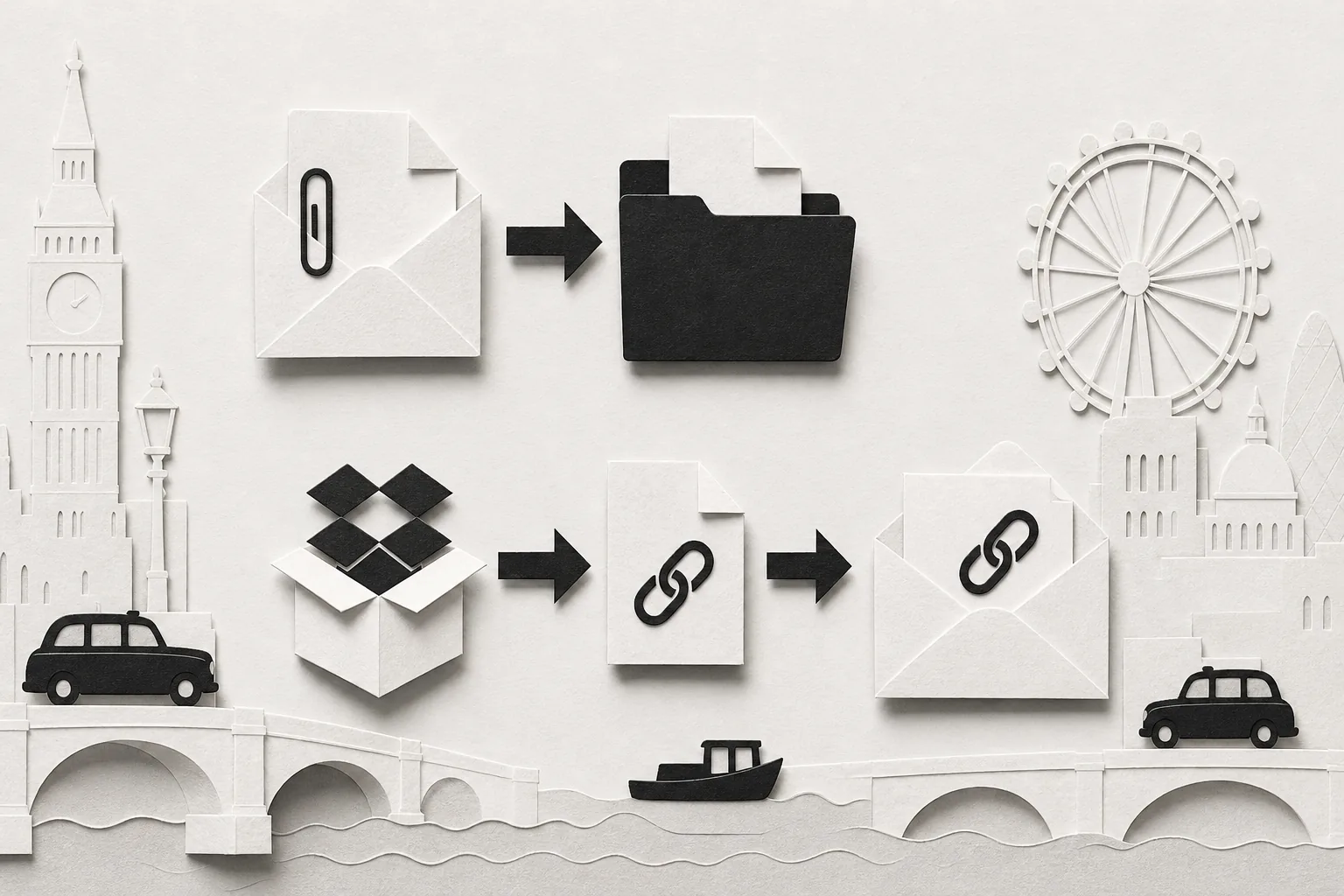
Keep the distinction in mind. Connecting a storage account so you can attach an existing file doesn’t automatically save new attachments from your inbox.
Step 3: Connect Dropbox for saving attachments
If saving incoming files is the goal, use an email-forwarding service that can file the attachment in Dropbox. With ForwardThis, the first job that needs Dropbox prompts you to connect the account through a connect button in its reply. You don’t need to connect it before you have a file to handle.
ForwardThis works from an email you send, not from watching your inbox. Its email-to-Dropbox instructions show the basic pattern: forward a message, say where the file belongs, then receive a reply with a record of the action.
ForwardThis reads an attachment’s name and type, not its contents. That means you can ask it to file a document without asking it to interpret what the document says.
Step 4: Forward the email with a clear instruction
Forward the relevant email to do@forwardthis.io. Put a plain instruction at the top, such as “Save the attached contract to Clients/Acme/Contracts in Dropbox.” A folder path helps make the destination clear.
You can also ask for a file from a link in the email to be saved. Keep the request specific about the destination. For example, “Save the attached invoice to Finance/Invoices in Dropbox” gives a clear place to file it without adding unrelated tasks.
One email can ask for more than one action, but keep each request explicit. ForwardThis replies with a record of what it did. If Dropbox needs connecting for that job, follow the connect prompt in the reply before the work can proceed.
Step 5: Share a Dropbox file from Outlook
For an outgoing message, copy the share link for the file in Dropbox and paste it into your Outlook email. This manual approach doesn’t need an add-in. It also works for a quick one-off share when you don’t need Outlook to save or file anything.
You can add a shared Dropbox link to an Outlook.com message by copying and pasting it while composing the email. This is a manual way to share a file without installing an add-in.
Read the access details before sending a link. Check who can open the file and whether the recipient should have access.
Step 6: Check the destination and action record
After a file-save request, read the ForwardThis reply and confirm it names the action you asked for. Check the Dropbox folder too, especially when the email has several attachments or the folder path matters to a client handoff.
ForwardThis can save email attachments or files from email links into Dropbox. It can also create a folder when the instruction calls for one. Its email-to-cloud-storage guide describes choosing the destination folder in the email instruction.
Most ForwardThis actions can be undone for 24 hours. Some actions can’t be reversed, so they need approval before they happen. Check the action record rather than assuming every file change has the same undo option.
Step 7: Troubleshoot a failed connection
If Outlook.com can’t show Dropbox files, check that you’re signed into the account you mean to use and review the access prompt. A work account may also have limits set by its organisation. If the account connection still fails, use a copied Dropbox link for sharing, or use email forwarding for saving an attachment.
If an older connection option is missing, don’t assume reinstalling will restore it. For a file-save request through ForwardThis, check that the Dropbox connection has been completed from the service’s reply and that your instruction names the destination.
ForwardThis approves actions that reach another person, are hard to reverse, or change many records. Messages to other people are always shown for approval before sending. That approval step matters if an email request includes a message to a colleague as well as a file task.
Step 8: Use the right method on mobile
For a phone-based file-save task, use an email app that can forward the message to do@forwardthis.io, then add the folder instruction at the top. ForwardThis works with any email provider because each job starts with an email you send.
If you’re sharing a Dropbox file from a phone, paste its share link into the Outlook message and check the file’s access settings before sending.
ForwardThis accepts requests by email. Its integration directory can help you check which connected apps are supported for the action you have in mind.
FAQ
Can I still use an add-in in Outlook?
You shouldn’t rely on it being available. If you can’t see it in Outlook, use a shared Dropbox link for outgoing files or an email-forwarding method to save incoming attachments.
How do I save an Outlook attachment to Dropbox?
Forward the email with the attachment to an email-forwarding service that can save files into Dropbox, then state the folder you want. With ForwardThis, send the request to do@forwardthis.io and connect Dropbox when prompted. Review the reply afterwards to confirm the file was saved in the intended place.
Can I attach a Dropbox file to an Outlook email?
Yes. You can paste a Dropbox share link into an Outlook message. Check the file’s access settings before you send it.
Does connecting Outlook and Dropbox sync every file?
No. Connecting a storage account for email attachments doesn’t mean every Outlook attachment is automatically copied into Dropbox. It lets Outlook access files for sharing. To save a specific incoming attachment, use a file-save process and name the destination folder in your request.
Can I save Outlook attachments to Dropbox from my phone?
Yes, if your email app can forward the message. Forward it to a service that can save attachments into Dropbox and include a clear folder instruction.
Conclusion
Use a Dropbox link when you’re sharing a file, and use email forwarding when you need an attachment saved into a folder. To try the latter, forward one message to ForwardThis with a clear Dropbox path, then check the reply and destination.