11 September 2026 · By Sam Thomas
Outlook Task Management: How to Use It
Learn Outlook task management step by step: turn emails into tasks, set due dates, track follow-ups, and delegate admin from Outlook.
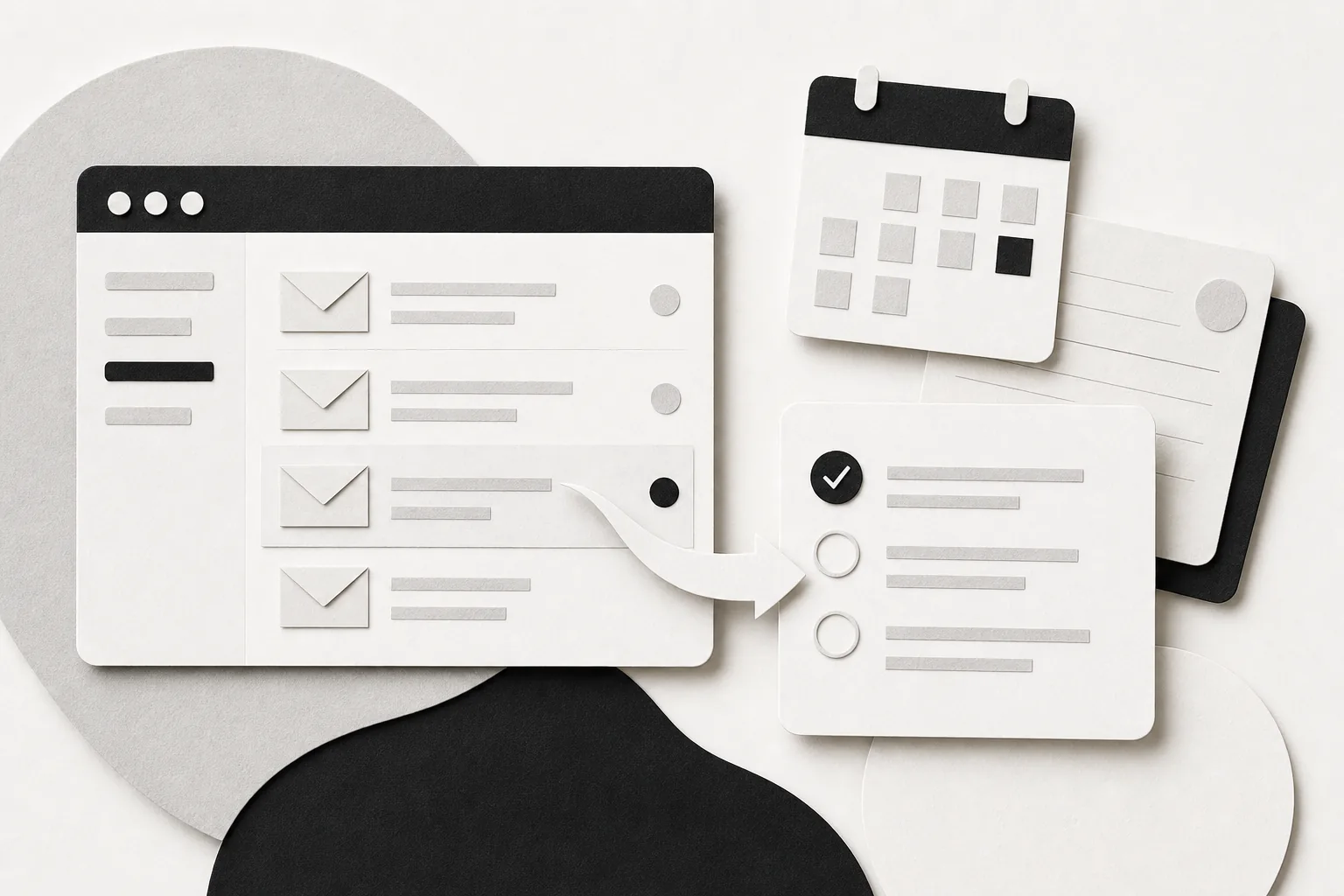
Outlook task management works best when every email request becomes a clear next action. You can turn messages into tasks, add dates and reminders, keep the original context, and review your work without relying on memory.
Follow these five steps. Then use ForwardThis when the task needs work in another app, such as HubSpot, Asana, Google Drive, or a calendar.
Table of Contents
- Step 1: Choose Where Outlook Tasks Should Live
- Step 2: Turn Outlook Emails Into Actionable Tasks
- Step 3: Add Due Dates, Reminders, Categories, and Notes
- Step 4: Review, Prioritize, and Complete Outlook Tasks
- Step 5: Delegate Outlook-Generated Admin Without Building a Workflow
- FAQ
- Conclusion
Step 1: Choose Where Outlook Tasks Should Live
Good Outlook task management starts with one clear home for your tasks. Outlook connects with Microsoft To Do, so you can work with tasks in Outlook while using To Do views such as My Day, Important, or Planned.
Pick the place you will check every day. If you spend most of your time in Outlook, keep task capture there. If you plan your day in To Do, use Outlook to flag messages and To Do as your daily task list. The tools work better when you stop keeping half your tasks in email and half in loose notes.
Microsoft describes Outlook as part of its Microsoft 365 suite, so the exact screen can vary by account type and whether you use the web app, desktop app, or mobile app. Start with the official Outlook sign-in page and confirm which version you use.
Now set a simple rule:
- Keep messages that need a reply in your inbox only briefly.
- Turn work that needs action into a task.
- Keep reference messages in a folder or archive.
- Use a project tool when several people must share ownership.
That last point matters. An Outlook task is useful for your own follow-up. It is less suitable when a team needs a shared board, handoffs, or project status. In that case, create the shared work in Planner or another task app, then keep a personal reminder in Outlook if you need one.
Step 2: Turn Outlook Emails Into Actionable Tasks
Outlook task management becomes useful when a task says what must happen next. A vague item such as “Acme email” will not help much tomorrow. “Send the revised proposal to Acme” will.
Open the email and choose the task action available in your Outlook version. You can also flag the message for follow-up. Give the task a short title that starts with a verb. Keep the original email attached or linked when Outlook provides that option. The message contains the names, files, and details you may need later.
Use this pattern:
- Write one action, not a topic.
- Name the person, client, or project.
- Add the result you need.
- Split large requests into separate tasks.
For example, turn “Proposal” into “Review Acme proposal and mark changes.” If the client needs a reply after that, make a second task. One task should lead to one clear finish point.
ForwardThis helps when the work goes beyond your own Outlook list. Forward an email with an instruction such as, “Create an Asana task for this and make it due next Tuesday.” We read the email and instruction, then send you a record of what we did. You do not need to open a separate workflow builder for a one-off request.
If your team uses Asana, the handoff may need more detail than a personal reminder. Include the project, owner, due date, and any file the recipient needs. If you want to connect Outlook and Asana in a more fixed setup, the Outlook Asana integration guide covers common setup choices.
Do not turn every email into a task. Newsletters, receipts, and messages that need no action should not enter your task list. A smaller list is easier to trust.
Step 3: Add Due Dates, Reminders, Categories, and Notes
Dates give Outlook task management a place in your day. A task without a due date can sit unseen, even when it matters.
Open the task details and add a due date that matches the real commitment. Use a reminder when missing the task would cause a problem. Do not set every reminder for the same hour. That creates a noisy burst of alerts instead of a useful plan.
Separate three ideas:
- Due date: when the work must be done.
- Reminder: when Outlook should bring it back to your attention.
- Priority: how important the work is compared with other tasks.
Say a client wants a contract by Friday. Set Friday as the due date. Set a reminder on Wednesday if you need time to review the file. Mark it important only if it should outrank other work. That small distinction keeps your list honest.
Add a category when you need to group tasks by client, project, or type of work. Keep the category set small. Five useful categories beat twenty labels that you rarely apply.
Use the notes field for the detail that will save you a second trip to the email. Add the contact name, the promised result, or the file location. If the task came from a message, keep the original message connected when possible. Context is part of the task.
Some Outlook and Microsoft To Do views support natural date phrases or quick date entry, but the exact shortcuts can vary by app and account. Check the result after entering a phrase such as “next Tuesday” or “in two weeks.” Never trust a date you have not reviewed.
For tasks that need several updates, write the next step in the notes. “Wait for legal review” is more useful than “Contract.” Your future self should know what to do without rereading the whole thread.
Step 4: Review, Prioritize, and Complete Outlook Tasks
Reviewing the list is the part many people skip. Outlook task management needs a short daily check so old tasks do not become background noise.
Start each morning with My Day or your chosen task view. Look at overdue work first. Then check what is due today. Move tasks that no longer fit. If a task has no clear next action, edit it before you start working.
Use a weekly review for the wider list. Check planned work, important items, and tasks waiting on someone else. Close tasks that are done. Delete items that no longer matter. Reschedule only when you have chosen a real new date.
| Task state | What to do | Example |
|---|---|---|
| Due today | Do it or reserve time for it. | Send the final client reply. |
| Overdue | Decide whether to act, move it, or remove it. | Chase an invoice that was due yesterday. |
| Waiting | Set a follow-up date and note who owes the next step. | Wait for a signed agreement. |
| Important | Protect time for it before lower-value work. | Review a renewal before the meeting. |
| Reference only | Remove it from the task list. | Keep a copy of a finished brief. |
Try to keep the daily list short enough to scan. If you carry fifty tasks into every morning, the list stops helping you choose. Put future work in Planned, then pull only the tasks you can address soon into your daily view.
When you finish a task, mark it complete at once. If completion triggers another action, create that next task while the context is still fresh. For example, after sending a proposal, add “Follow up with Acme on Friday.”
For more involved work, use a shared project tool and keep Outlook for your personal reminders. You can also use email automation tools for task and admin work when repeated email requests keep producing the same kind of update.
Step 5: Delegate Outlook-Generated Admin Without Building a Workflow
Some Outlook tasks are really requests to update another system. You read an email, then copy details into a CRM, save an attachment, create a task, or add a calendar event. That is where ForwardThis fits.
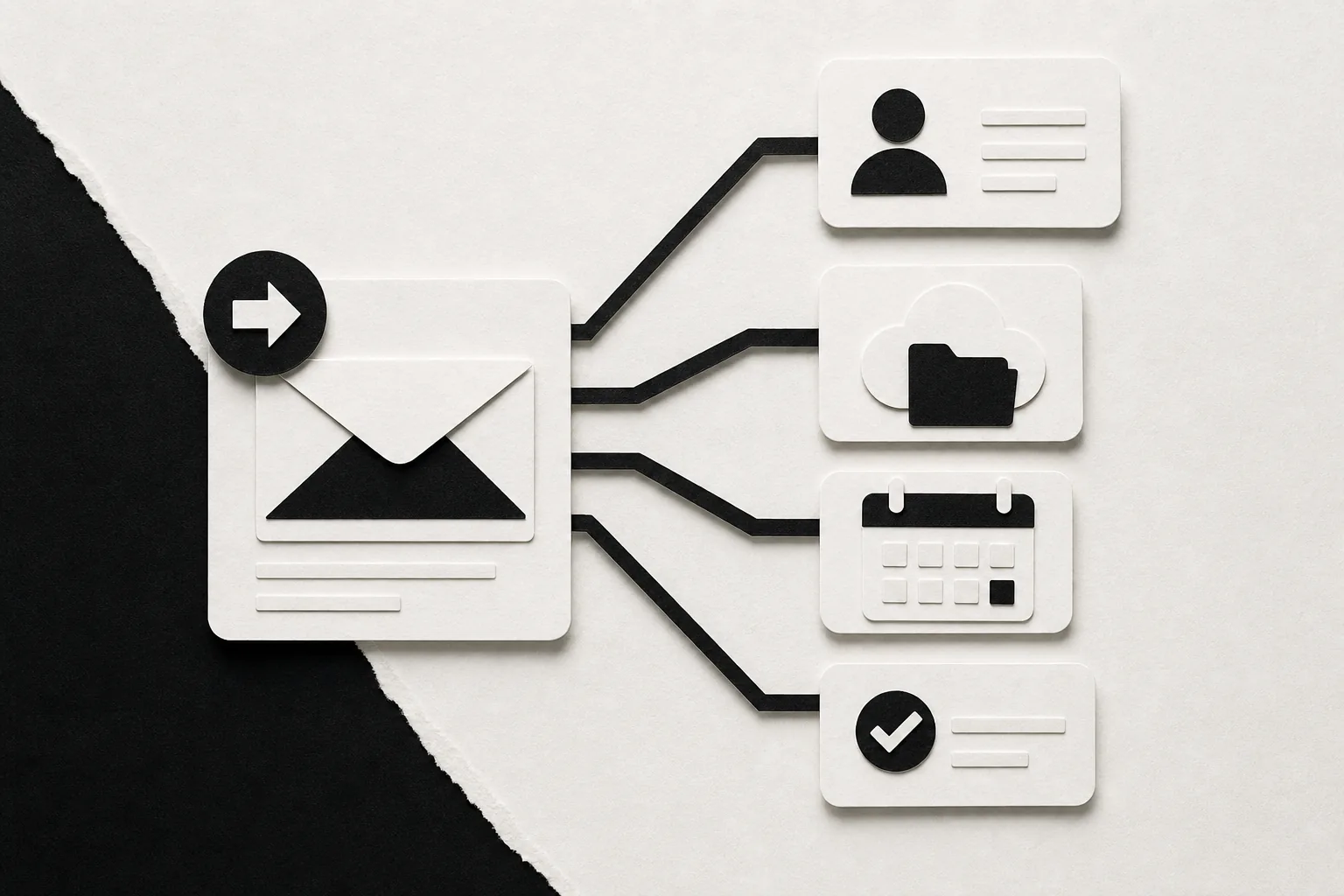
Forward any email to ForwardThis and write the instruction in plain language. For example:
- “Add this person to HubSpot and follow up Friday.”
- “Save the attached proposal in the Acme folder in Google Drive.”
- “Create a task in Asana for this and make it due next Tuesday.”
- “Add this meeting to my calendar.”
We use the email content and your instruction to carry out the supported action. Then we reply by email with a clear record of what happened. You stay in Outlook instead of opening each destination app for a small admin job.
This is different from a fixed automation. Zapier, Make, and n8n are useful when the same trigger should run the same steps every time. ForwardThis is for the messier request where you decide what should happen for this email. You do not need to build a workflow before you send it.
That makes it useful for a consultant filing a proposal, a recruiter updating a candidate record, or an agency owner turning a client request into a project task. The request changes each time, but the starting point stays the same: an email and a clear instruction.
ForwardThis only sees messages you deliberately send or forward. It does not need access to your whole inbox. We also treat forwarded content as information, while authenticated instructions from you authorize the action. Where an action can be reversed, supported actions can be undone for 24 hours. Actions that cannot safely be reversed require approval first.
You can also give ForwardThis standing instructions, such as always using a certain CRM or asking before posting to a team channel. Memory can retain useful context such as folder names and project aliases. It only fills in details inside an action you have already requested.
Try it with one low-risk email first. Send a request to create a task or file an attachment. Check the reply, then use it for larger admin jobs when the result matches your rules.
FAQ
How do I create a task from an Outlook email?
You can create a task from an Outlook email by flagging the message or using the task action in your Outlook version. Give the task a verb-led title, add a due date, and keep the original message connected when possible. For work in another app, forward the email to ForwardThis with a plain instruction.
What is the difference between Outlook tasks and Microsoft To Do?
Outlook tasks are the work items you capture around email and calendar activity, while Microsoft To Do gives you a task-focused view for planning and daily review. The two can work together through Microsoft 365. Use the view that you will check consistently, rather than splitting tasks across several lists.
How do I set a reminder for an Outlook task?
You set a reminder by opening the task details and choosing when Outlook should alert you. Keep the due date tied to the real deadline, then set the reminder early enough to leave room for review or follow-up. For a task waiting on another person, set the reminder before the date you need the final result.
Can Outlook tasks be assigned to someone else?
Outlook tasks can be useful for your own work, but shared ownership may fit better in Planner or a project management app. If you need to delegate a one-off admin action, forward the email to ForwardThis with the requested result. We can create supported tasks or updates in the connected app.
How can I turn Outlook emails into tasks in Asana?
You can turn an Outlook email into an Asana task by creating it in Asana manually, using a fixed integration, or forwarding the message to ForwardThis with the project and due date. Include the task title, owner, and needed context. Check the new task after creation so the right project and deadline are set.
Conclusion
Use Outlook for fast capture, Microsoft To Do for a daily view, and a shared project tool when other people need access. When an email creates admin in another app, try ForwardThis with one clear instruction. Forward a low-risk message today and check the result before making it part of your regular routine.