7 September 2026 · By Sam Thomas
AI Email Organizer: Features, Uses, and Setup
Learn what an AI email organizer does, how it sorts and prioritizes messages, connects with your apps, and cuts repetitive email admin.

Your inbox can feel like a second job. An AI email organizer can sort noise, flag messages that need action, and help you deal with routine work faster. But these tools don't all do the same thing, so the right choice depends on whether you need inbox cleanup, reply help, or action in another app.
Table of Contents
- What Is an AI Email Organizer?
- How AI Email Organizers Handle Everyday Inbox Work
- From Inbox Sorting to Work in Other Apps
- Setup, Privacy, and the Real Cost of Inbox Automation
- AI Email Organizer FAQ
- Conclusion
What Is an AI Email Organizer?
An AI email organizer uses machine learning or language models to read message signals and help decide what deserves your attention. It may sort mail into folders, rank messages by priority, summarize long threads, draft replies, or suggest the next task.
That sounds like one product category. It isn't. Some tools sit inside Gmail or Outlook. Others act as a separate email client. Background services such as SaneBox sort incoming mail while you keep using your normal inbox. A service such as Canary Mail combines several accounts in one app and adds summaries, sorting, bulk cleanup, snooze, and calendar tools. Canary Mail keeps data encrypted.
The first question is simple: what should happen after the message is understood?
- Find the important mail: The tool ranks messages or places them in a primary inbox.
- Reduce reading time: It summarizes a thread and points to action items.
- Help you reply: It drafts text from the thread and a tone you choose.
- Delay or remove noise: It snoozes mail, groups newsletters, or supports bulk actions.
- Move work elsewhere: It turns an email into a CRM update, task, file, or calendar event.
Those last two jobs are easy to mix up. An inbox organizer changes how you handle email. An email automation tool changes what happens in other systems after an email arrives.
For a broader look at the first category, our guide to the best AI email assistant features explains how inbox help differs from delegated admin work.
How AI Email Organizers Handle Everyday Inbox Work
An AI email organizer usually starts with classification. It looks at the sender, subject, thread, past actions, and message content. It then places the message into a category or gives it a priority score.
Some systems learn from your behavior. If you keep moving newsletters away from the main inbox, the tool may learn that those senders belong elsewhere. If you reply quickly to a client, the tool may treat future messages from that person as important. You still need to check the results. Machine learning can spot patterns, but it can't know every business rule.
The features that save the most time
Automatic sorting moves low-value mail out of your main view. SaneBox, for example, is described as sending less important messages to a separate folder. That approach suits people who want to keep Gmail, Outlook, Apple Mail, or another existing service.
Priority views put likely action items first. This helps when the inbox mixes client requests with receipts, alerts, and newsletters. The key test is whether the tool shows why a message received priority. If it gives no reason, review the system closely during the first week.
Daily summaries turn a pile of messages into a short review. You can scan the summary, open the few threads that matter, then take bulk action on the rest. This is safer than deleting everything because the summary gives you a second look.
Snooze and reminders keep a message out of sight until a useful time. A follow-up reminder can also flag a thread when someone hasn't replied. That matters in sales and client work, where a missed follow-up may sit quietly for days.
AI drafts are useful for first passes, not blind sending. Ask for a short reply, a warmer tone, or a clear answer to one question. Then check names, dates, prices, and promises before you send anything.
Shortwave shows another pattern: the AI sits beside the inbox and can help with search, filters, drafts, and meeting work. Its approach suits Gmail users who want a new email interface rather than a background filter.
From Inbox Sorting to Work in Other Apps
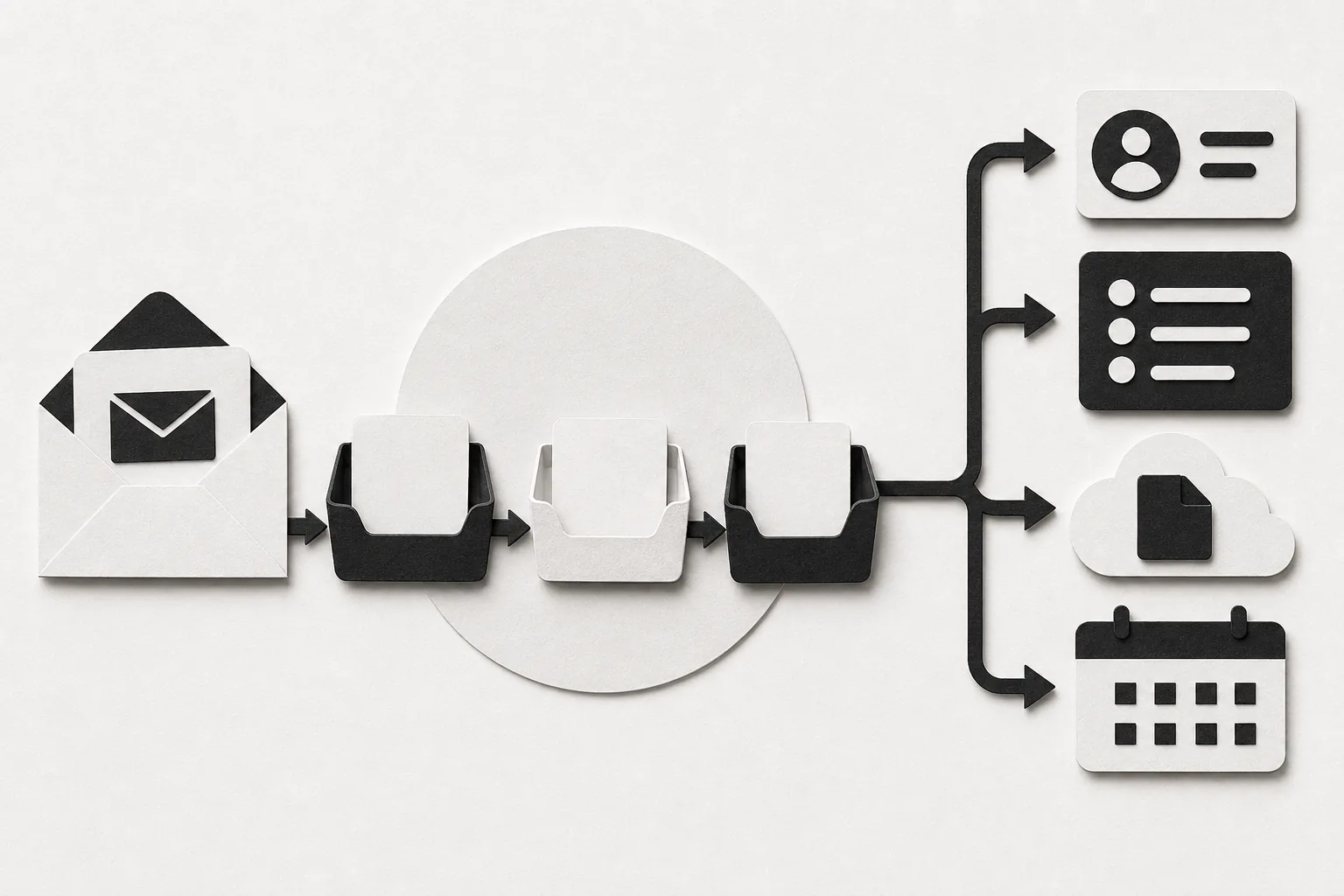
An AI email organizer becomes more useful when a message starts work somewhere else. A client email may need a CRM note. An attached proposal may belong in a Drive folder. A request may need a task with a due date.
This is where ForwardThis takes a different path. We don't ask you to replace Gmail, Outlook, or Apple Mail. Forward any email, write what you want done, and ForwardThis carries out the supported action in the app you already use. It then replies by email with a record of the result.
For example, you might write:
- “Add this person to HubSpot and follow up Friday.”
- “Save the attached proposal in the Acme folder in Google Drive.”
- “Create an Asana task for this and make it due next Tuesday.”
That differs from a fixed workflow. Tools such as Zapier, Make, and n8n work well when the same trigger should run the same steps each time. ForwardThis is for messier jobs where you read the email first and decide what needs to happen this time.
| Need | Best fit | What to check |
|---|---|---|
| Less newsletter clutter | Background inbox filter | Can you review and restore messages? |
| Faster thread review | AI email client | Does it search the account you use? |
| Drafts and tone help | Email writing assistant | Can you edit before sending? |
| Tasks from changing email requests | ForwardThis | Can it reach your task app and return a clear result? |
| Fixed repeatable sequences | Workflow automation | Can you define the trigger and each step? |
The market is fragmented. “Connects with your apps” is too vague. Check the exact CRM, task app, file store, or calendar you need.
For agencies, consultants, and small teams, a directory of email automation workflows can help match a message type to the action you need. And when marketing work grows beside admin work, marketing and growth resources may be useful for B2B SaaS or agency teams planning acquisition work.
Setup, Privacy, and the Real Cost of Inbox Automation
Setup depends on the type of tool. A new email client may ask you to connect Gmail or Outlook, import accounts, and set your default view. A background organizer may ask for mailbox permissions and then learn from the way you sort mail. A delegated email service can work through deliberate forwarding instead.
A safe setup process
- Pick one account first. Use a work inbox with a clear problem, not every mailbox at once.
- Read the permissions. Check whether the tool can read, draft, send, delete, or change labels.
- Start with low-risk actions. Begin with sorting, summaries, or drafts. Keep sending and deletion behind approval.
- Set a review window. Check filtered mail each day at first. Restore mistakes so the tool can learn where that option exists.
- Write standing rules with care. A rule such as “ask before posting to Slack” is safer than a vague instruction to share useful messages.
Privacy deserves more attention than a feature list usually gets. Ask how much of the inbox the tool can see, how long it keeps raw email, whether attachments are stored, and how you revoke access. A tool that only sees messages you deliberately forward has a narrower view than one with full mailbox access.
ForwardThis is designed around that narrower model. It sees emails you send or forward to it, rather than your whole inbox. Forwarded content is treated as information, while authenticated instructions from you authorize actions. Reversible actions can be undone for 24 hours where supported, and some actions need approval first.
Trial periods ranged from seven to 30 days, with an average of 14.5 days. A free trial lets you test fit. It does not prove that the tool will be affordable after the trial.
Measure the work instead. For one week, count the time spent sorting mail, making CRM updates, filing attachments, creating tasks, and chasing replies. Then test the same jobs with the organizer. If a tool saves ten minutes work, the gain may be smaller than the sales page suggests.
AI Email Organizer FAQ
What does an AI email organizer do?
An AI email organizer sorts messages and helps you decide what to do next. Depending on the product, it may rank priority mail, group newsletters, summarize threads, snooze messages, suggest replies, or create drafts. Some tools also send instructions from email into other business apps, but that is a separate automation function.
Can AI organizers work with Gmail and Outlook?
Yes, many AI email organizers support Gmail, Outlook, or both, but support varies by product. Some tools work only inside one email service. Others act as a separate client or background layer. Check whether your plan supports your exact account type, especially Google Workspace, Microsoft 365, shared inboxes, or multiple accounts.
Are AI email organizers safe?
AI email organizers can be safe when you limit permissions and review their data rules. Check whether the tool can send or delete mail, how long it keeps message content, and whether it stores attachments. Start with drafts and sorting. Keep high-impact actions behind approval until you trust the results.
Can AI turn an email into a task?
Yes, some AI email tools can turn a message into a task, but the exact app support differs. ForwardThis handles this through a written instruction, such as “Create a task in Asana for this and make it due next Tuesday.” It can also send related email work to supported CRM, file, calendar, and collaboration tools.
How much time do AI email tools save?
The time saved depends on your inbox and the work attached to each message. Track your current minutes before choosing an AI email organizer. Sorting may cut review time, while task or CRM automation can remove app switching. Count the time needed to check mistakes, since review is part of the real cost.
Conclusion
Choose an inbox organizer if your main problem is noise, missed messages, or slow replies. Choose ForwardThis if email keeps creating work in your CRM, task app, file store, or calendar. Try it with one genuine email and a clear instruction, then check the result before you expand the habit.