Blog · 29 August 2026 · By Sam Thomas
Best AI Email Assistant: How to Use One
Find the best ai email assistant for your work. Compare key features, check privacy, and automate admin that starts in your inbox.
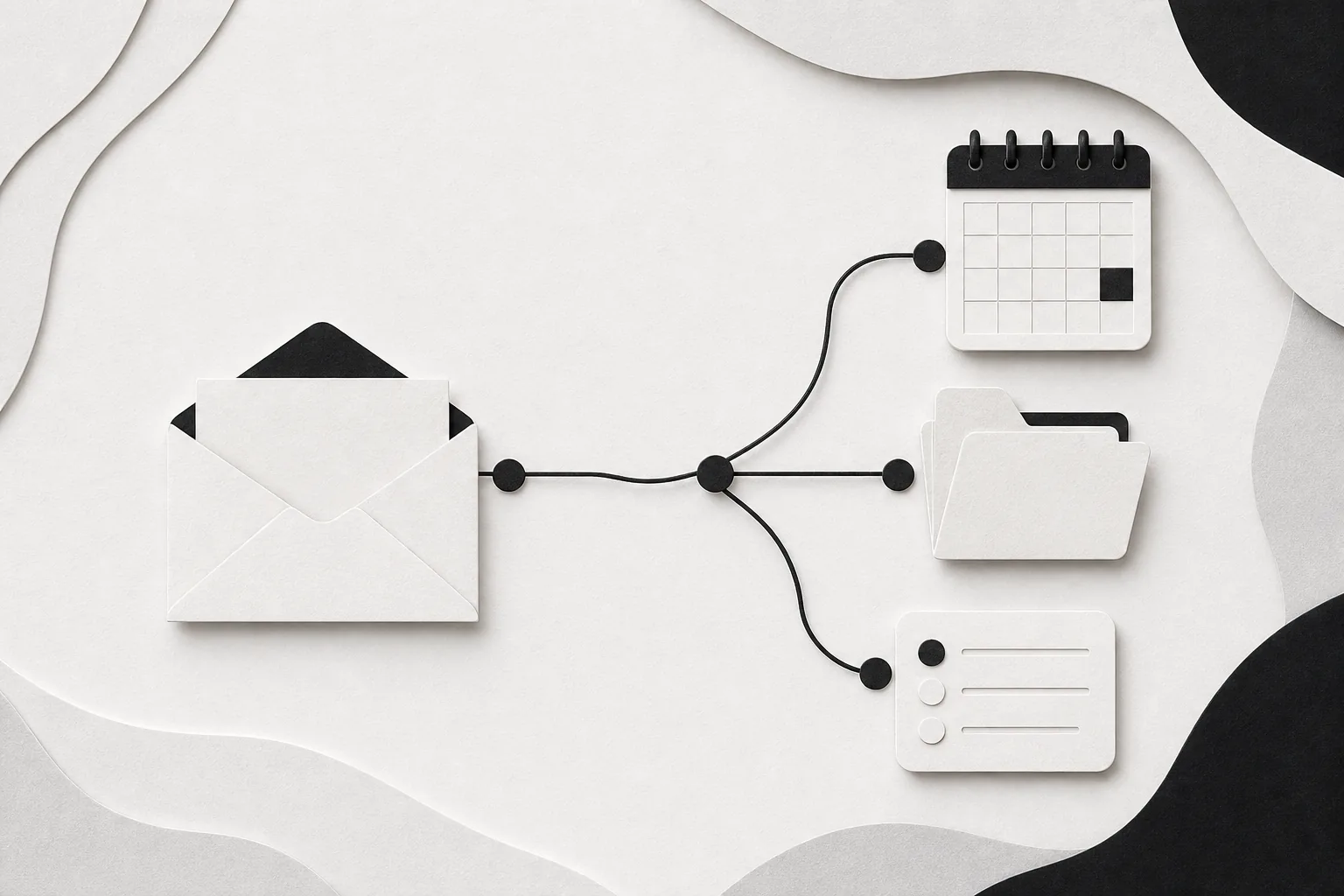
Your inbox can eat a workday in tiny bites: one reply, one follow-up, one file to save. The best AI email assistant depends on the job you want off your plate, not the loudest feature list. Most AI-driven email assistants use on-demand, instruction-driven actions, while only 2 of 24 products offer a true free tier. Here’s how to test the options and pick one that fits.
Table of Contents
- ForwardThis
- Step 2: Compare AI Email Assistants by the Job You Need Done
- Step 3: Test Triage, Summaries, Drafts, Scheduling, and Reminders
- Step 4: Check Gmail, Outlook, Calendar, CRM, and Task Integrations
- Step 5: Review Privacy, Permissions, Memory, and Writing Controls
- Step 6: Calculate Cost, ROI, and the Right Setup for Your Team
- FAQ
- Conclusion
1. ForwardThis
ForwardThis is best when an email starts work in another business app. You forward the message, write a plain instruction, and ForwardThis carries out the task. It then replies with a record of what it did.
Try an instruction like, “Add this person to HubSpot and follow up Friday.” You could also write, “Save the attached proposal in the Acme folder in Google Drive.” ForwardThis can handle jobs across supported CRM, file, calendar, task, project, database, and collaboration tools.
That makes it different from an email writer. It doesn’t mainly summarize your inbox or polish replies. It handles the small admin task that comes after you read a message. You don’t need a new inbox, a browser extension, or a separate mail app. If your current email service can send a normal email, you can use it from Gmail, Outlook, Apple Mail, or another standard client.
We think this is the right first test for most small teams because the setup starts with a real job. There’s no workflow to design before you know what you need. You simply send the email and say what should happen.
For example, a consultant might forward a client message with, “Create a task in Asana for the proposal and make it due next Tuesday.” A sales manager might write, “Update the deal in HubSpot, save the PDF in Drive, and remind me to chase this Friday.” The value is in handing off the whole request instead of opening three apps and relying on memory.
ForwardThis also takes a narrower approach than general AI agents. You don’t have to build a chain of tools or learn special agent terms. Memory can retain useful details, such as a preferred folder or project, but it only fills in context for an action you have actually asked for. Standing Instructions let you set clear rules, such as asking before posting to Slack.
There are sensible limits. ForwardThis is not a replacement for a full inbox manager, and it won’t make every possible business app act together. Check the supported connector before you promise a new process to your team. Actions that can’t safely be reversed may need approval, while supported reversible actions can be undone for 24 hours.
Its privacy model is also worth noting. ForwardThis sees only the emails you deliberately send or forward. It is designed to remember what it did rather than keep every message forever. For a small agency owner or founder who wants help with scattered admin, that narrow handoff is easier to understand than broad inbox access.
If you want to see how a similar handoff works before connecting several apps, start with a small request such as filing one attachment or making one task. Our guide to automated email response setup also covers triggers, review points, and safer rules for email actions.
Step 2: Compare AI Email Assistants by the Job You Need Done
The best AI email assistant for you should match the point where your process breaks. Start with the job, then compare the tool. A clever draft won’t help much if your real problem is forgetting to update a deal or file an attachment.
Of the 14 items with automation data, 12 used on-demand, instruction-driven actions, while only two relied on predefined workflow templates. That finding matters because many buyers expect a library of ready-made recipes, while most assistants actually expect you to ask for help as each message arrives.
| Job you need done | What to test | Good fit to consider | Main tradeoff |
|---|---|---|---|
| Move inbox work into business apps | Can it read the message and carry out a clear instruction? | ForwardThis | Check supported connectors and approval rules. |
| Summarize long threads | Does the summary show decisions, open questions, and next actions? | Google Gemini, Microsoft Copilot, Shortwave | Suite tools work best inside their own ecosystems. |
| Draft replies in your voice | Can you set tone, vocabulary, and review controls? | Superhuman Mail, Shortwave, Microsoft Copilot | A good draft still needs a human check. |
| Reduce inbox clutter | Can it sort low-priority mail without hiding important messages? | SaneBox, Superhuman Mail, Shortwave | Sorting tools may not handle external admin. |
| Build repeatable custom flows | Can you define triggers, conditions, and actions? | Lindy, Missive | More control usually means more setup. |
| Work across a mixed app stack | Can it reach the CRM, file tool, task app, and calendar you already use? | ForwardThis or a cross-platform assistant | Integration claims are often less clear than feature claims. |
Platform fit is the next filter. Google Gemini is aimed at people deep in Google Workspace. Microsoft Copilot fits teams that live in Microsoft 365. Shortwave is centered on Gmail, while Superhuman Mail works on top of Gmail and Outlook ed product comparisons. If your team uses both ecosystems, don’t assume a tool that looks strong in Gmail will work the same way in Outlook.
Pricing needs the same care. For a solo professional, a paid inbox app may make sense if it removes a daily bottleneck. For a team, count every seat and include the time needed to train people. A tool that saves one person ten minutes but adds a complex maintenance job may be the wrong trade.
Use the comparison table as a shortlist, not a final verdict. Write down your top two jobs and reject any tool that cannot perform both without a workaround.
Step 3: Test Triage, Summaries, Drafts, Scheduling, and Reminders
The best AI email assistant should reduce decisions, not only keystrokes. Test each feature with the kind of message that causes trouble in your inbox.
Start with triage
Take a busy email thread and ask the tool to sort it by action. A useful result should tell you if you need to reply, delegate, schedule time, save a file, or wait for someone else. It should show enough context for you to check the judgment quickly.
Don’t test with a clean sample. Use a thread with a vague subject line, several replies, and one buried deadline. That reveals whether the assistant reads the full conversation or reacts to the latest sentence.
Check summaries for decisions
Ask for a short summary with three fields: the decision, the open question, and the next owner. Then compare it with the original thread. If the tool drops a condition or assigns the wrong owner, it isn’t ready to run without review.
Google Gemini and Microsoft Copilot are strong candidates for users who want summaries inside their main work suite. Shortwave also focuses on thread summaries and action items. The right pick depends on where your messages, calendar details, and files already sit. Google describes Workspace as a connected set of work tools. Check the vendor’s official Google Workspace overview before assuming a feature belongs to your specific license.
Test the writing assistant
Give the tool a short instruction such as, “Say we can meet Thursday afternoon. Keep it warm and brief.” Then ask it to rewrite the same reply for a client, a teammate, and a supplier.
Look for facts that came from the thread. Watch for made-up promises, stiff phrases, and a tone that doesn’t sound like you. Some tools learn from sent messages or let you set style rules. That can help, but you should still approve the draft before it leaves your account.
Try scheduling and reminders
Use a thread where two people need to find a meeting time. Ask the assistant to check availability, suggest a slot, and draft the reply. Then test a follow-up request: “Remind me Friday if they haven’t replied.” Confirm where the reminder appears and what happens when the person responds.
One useful test is to measure the handoff, not the draft. Can you move from the summary to the next action without searching for the source thread? Can the tool show why it made the suggestion? A fast answer that lacks a source can create more checking work later.
For a safer email process, keep sending manual at first. Drafts should wait for approval. Actions that change a CRM, move a file, or notify a team need a clear audit trail.
Step 4: Check Gmail, Outlook, Calendar, CRM, and Task Integrations
An AI email assistant is only useful when it can reach the place where the work must land. List your current apps before you compare connectors.
Map the full path
Write down the path for one common request. It might be email to HubSpot, then a follow-up task in Asana. Another path could be email attachment to Google Drive, followed by a calendar reminder. Include the person who owns the next step.
Then ask four questions:
- Can the assistant read the message and attachment?
- Can it find the right record, folder, project, or calendar?
- Can it make more than one related change?
- Does it report what happened by email or inside the destination app?
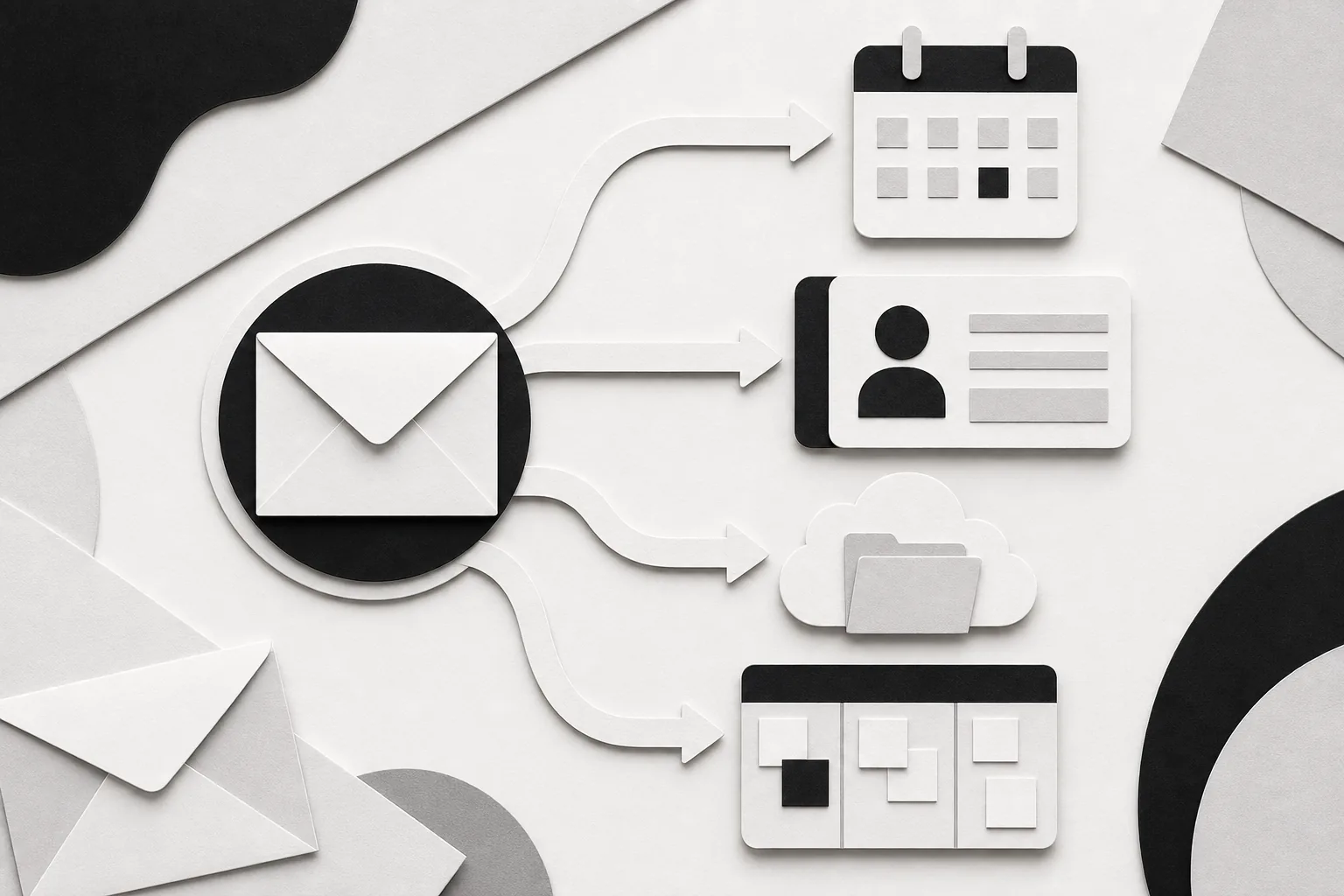
ForwardThis is built for this email-to-app handoff. You can write, “Create a task in Asana for this and make it due next Tuesday,” without opening Asana first. You can also combine related actions, such as updating a deal in HubSpot and saving a proposal in Drive.
That approach differs from fixed workflow tools. Zapier, Make, and n8n are useful when the same trigger should run the same sequence every time. ForwardThis fits the messier request where you read the email first and decide what needs to happen this time. If you’re comparing technical setup options, our guide to n8n alternatives for email automation explains that difference in more detail.
Check the email client boundary
Some assistants live inside Gmail. Others work in Outlook, require a separate app, or sit in the background while you keep your current inbox. Confirm the exact client support for every person who will use the tool.
Google-first tools can make sense for a team that already uses Gmail, Drive, and Calendar. Microsoft Copilot is the natural place to test for an organization built around Outlook and Microsoft 365. Your own admin settings still control which assistant features are available.
Test records and permissions
Use a test contact, a sample deal, and a non-critical project. Ask the assistant to add a note, create a task, and save one file. Then check the destination apps directly. Don’t rely on a success message alone.
Pay attention to duplicates. If the same person appears under two names, can the tool tell which CRM record to update? If two folders share a similar name, does it ask a question or guess? A good connector should make uncertainty visible.
Also test what happens when an app is unavailable. Does the assistant retry, wait for approval, or report a failed action? You need a clear answer before you place client work behind the connection.
Step 5: Review Privacy, Permissions, Memory, and Writing Controls
Privacy should be part of your feature test for the best AI email assistant. Ask what the tool can see, what it stores, what it remembers, and who can approve an action.
Start with access
Some products ask to connect an entire mailbox. Others only process messages you send to them. Those are very different models. If your work includes client records, contracts, hiring data, or private files, narrow access is easier to explain to your team.
ForwardThis uses deliberate forwarding as the starting point. It doesn’t need access to your whole inbox. You decide which message becomes an instruction, while authenticated instructions from your account control the action.
Ask every vendor these questions before a team rollout:
- Does the service train a model on your email or attachments?
- How long does it keep raw message content?
- What logs remain after an action is complete?
- Can an admin remove access for one person?
- Can users review or undo actions?
Separate memory from permission
Memory can save time when it remembers a folder, client alias, or preferred project. But memory should fill in a requested action, not invent a new one. That distinction matters.
Suppose you once said, “Save Acme proposals in the client Drive folder and create an Asana follow-up.” Later, “Save this and follow up Friday” may be enough if the context is clear. But the assistant shouldn’t decide on its own to update Acme’s CRM record just because that happened before.
Standing Instructions should be explicit. You might tell the tool to use HubSpot for new leads, ask before posting to Slack, or write in a set style. Keep these rules short. Review them when your team changes apps or roles.
Control the writing
A drafting tool should let you set the limits that matter to your business. Try rules for tone, spelling, greeting, sign-off, and words you don’t use. Then compare a draft with a real sent message.
Voice features can help when you’re away from the keyboard, but treat spoken commands like typed commands. Test what the assistant hears, what it sends, and whether it asks for confirmation. A voice shortcut that sends the wrong message is faster in the wrong direction.
Keep human approval for sensitive replies. That includes legal commitments, pricing changes, hiring decisions, refunds, and messages that contain personal data. The assistant can prepare the work. A person should decide when the risk is high.
Finally, check the audit trail. You should be able to tell which message led to an action, what instruction was used, and whether a person approved it. If you can’t reconstruct the event, don’t use that feature for important records.
Step 6: Calculate Cost, ROI, and the Right Setup for Your Team
Cost is more than the subscription. The best AI email assistant should save enough admin time to justify its price without adding a second job.
Count the work first
For five workdays, track email tasks that happen outside the inbox. Use a simple note with four fields:
- What arrived by email?
- Which app needed an update?
- How long did the handoff take?
- What happened when you forgot it?
Include small jobs. Saving an attachment may take two minutes. Finding the correct CRM record may take five. Chasing a missed follow-up can take much longer because you must recover the whole thread.
Use a plain ROI check
Estimate the monthly value of the time you could reclaim. Then subtract the monthly tool cost and any setup or usage fees. Keep the estimate modest. If the result only works when every AI action is perfect, the tool is too expensive for that process.
For a solo consultant, the right setup may be one mailbox and two actions: filing documents and making follow-up tasks. For a small agency, the better test may be client email to CRM note, project task, and shared folder. For a larger team, permissions and audit records may matter more than a few saved minutes.
Choose a small rollout
Start with one person and one workflow for two weeks. Pick a process with clear success criteria. “Save every proposal to the right client folder” is easier to judge than “manage email better.”
Set a stop rule before you begin. For example, pause the test if the assistant creates duplicate records twice or files a client document incorrectly. This isn’t pessimism. It keeps a small experiment from turning into a quiet data problem.
Review the results with three questions:
- Did the tool remove the handoff work you meant to remove?
- Did you spend less time checking than doing the task yourself?
- Would another team member understand what the assistant did?
If the answer is yes, add one more task. If not, narrow the instruction or choose a tool that fits the job better. You don’t need to automate every email. You need to remove the few repeat tasks that keep interrupting good work.
ForwardThis is a sensible place to start when your process is still changing. You can try a real email, see the result, and add more detail only when the next request needs it. That beats building a large workflow for a five-minute job.
FAQ
What is the best AI email assistant for small businesses?
The best AI email assistant for a small business is the one that handles the admin created by email. ForwardThis is a strong fit when messages lead to CRM updates, file filing, tasks, calendar events, or reminders. Start with one repeat task and test the result before connecting more apps.
Can an AI email assistant work with Gmail and Outlook?
Yes, some AI email assistants work with Gmail and Outlook, but support varies by product. Google Gemini fits Google Workspace, while Microsoft Copilot fits Microsoft 365. ForwardThis works from any standard email client because you send or forward the message by email. Check each connector before you plan a shared team process.
Can AI email assistants create tasks from emails?
Yes, some AI email assistants can turn an email into a task when the needed task app is connected. With ForwardThis, you can forward a message and write an instruction such as, “Create an Asana task for this and make it due next Tuesday.” Test the task title, owner, due date, and source link.
Are AI email assistants free?
Some AI email assistants have free plans or trials, but free access is uncommon among the products reviewed. Only two of 24 products in the review were recorded with a true free tier. Check limits closely because a free trial, free download, and free plan may allow very different amounts of daily work.
Is it safe to give an AI assistant access to email?
Safety depends on access, storage, permissions, and review controls. An AI email assistant that processes only messages you deliberately forward may expose less data than one with full mailbox access. Ask how long raw content stays stored, whether it trains models, and how you can review or undo actions before you connect client mail.
Can an AI assistant send emails automatically?
Some AI assistants can send or prepare messages automatically, but automatic sending should be limited to low-risk cases. Keep human approval for pricing, legal terms, personal data, refunds, and sensitive client replies. For most teams, drafts plus a clear review step are safer than allowing every generated reply to leave the inbox.
Conclusion
Pick the assistant that removes your biggest email handoff, not the one with the longest feature list. If your messages create work in CRM, files, calendars, or task tools, try ForwardThis with one real email and one clear instruction. Keep the first test small, review the result, then add the next job only when the handoff feels dependable.