8 September 2026 · By Sam Thomas
Best Inbox Management Software: 10 Top Picks
Compare the best inbox management software for individuals and teams, with AI sorting, shared inboxes, integrations, automation, and pricing.

Email can feel like a work queue that never closes. The best inbox management software helps you sort messages, protect focus, or turn an email into work somewhere else. Here are 10 strong options, with the right fit and the main catch for each.
Table of Contents
- ForwardThis
- Superhuman, fast triage for high-volume inboxes
- Shortwave, AI-native organization for Gmail users
- Read AI, cross-channel context for sales teams
- Notion Mail, email connected to notes and projects
- Copilot in Outlook, native assistance for Microsoft 365 teams
- Gemini in Gmail, AI help inside Google Workspace
- SaneBox, automatic filtering without changing email clients
- Bloomerang, email automation for growing nonprofits
- Shared inbox platforms for collaborative team email
- Inbox management software comparison table
- What to look for in inbox management software
- FAQ
- Conclusion
1. ForwardThis
ForwardThis is email-first operations software for people whose inbox creates work in other apps. It’s best for founders, consultants, sales teams, agencies, recruiters, and small businesses that need to act on messages instead of merely sort them.
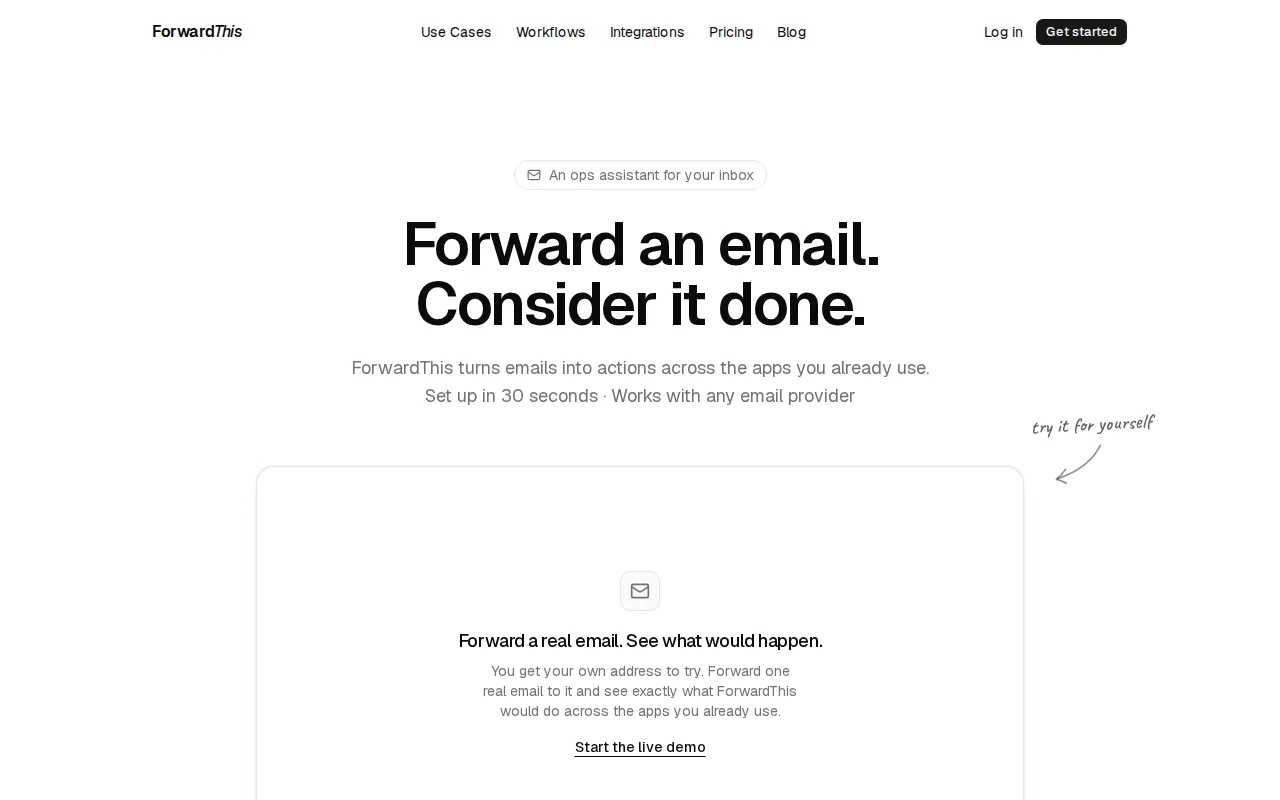
Send or forward an email, then add a plain instruction. For example: “Add this person to HubSpot and follow up Friday.” ForwardThis reads the request and the email, carries out supported actions, then replies with a record of what it did.
That can mean saving an attachment to Google Drive, creating an Asana task, adding a calendar event, updating a Salesforce deal, or writing information to Notion or Airtable. One instruction can contain several related actions.
This is where ForwardThis differs from standard inbox tools. It doesn’t replace Gmail, Outlook, or Apple Mail. You don’t need a browser extension or a new email client. You also don’t need to design a fixed workflow before a job appears.
That makes it useful for messy admin. A client email may need a CRM note today, a file saved tomorrow, and a task created next week. You decide what should happen each time.
ForwardThis also limits access by design. It only sees messages you deliberately send or forward. Its Memory can retain useful context, such as a client alias or folder preference, but it can only fill gaps inside an action you requested.
The caveat is clear: ForwardThis isn’t mainly for drafting replies or cleaning up a crowded inbox. If your only problem is newsletters and low-priority mail, a sorting tool may fit better. If email is the start of small jobs across business software,this guide to AI email assistantsexplains the difference between inbox help and operational help.
2. Superhuman, fast triage for high-volume inboxes
Superhuman is inbox management software for people who process a large volume of email and want to move quickly. It’s best for users who like keyboard control, fast search, and a focused email client.
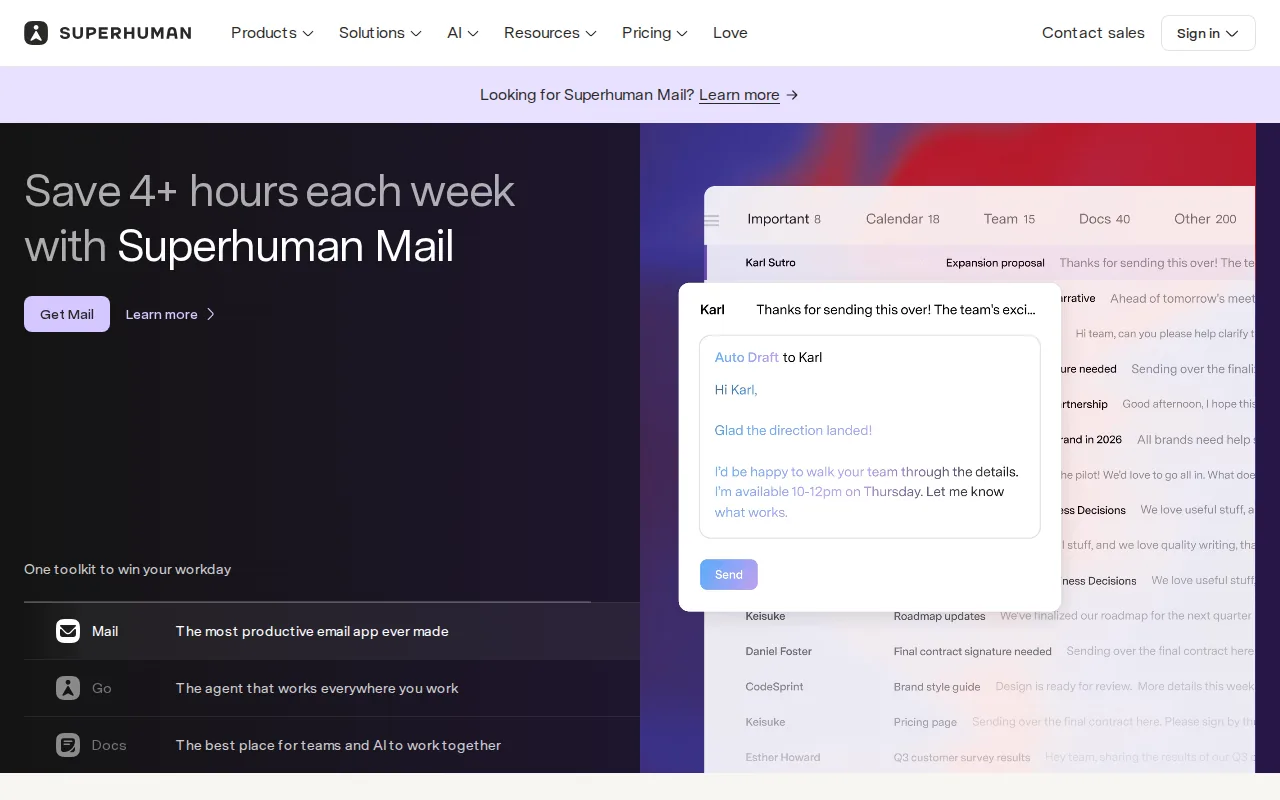
Its AI triage helps sort incoming mail.
The appeal is speed. A user can keep their hands on the keyboard instead of opening menus for every archive, snooze, or reply action. That matters when email arrives in steady waves throughout the day.
Superhuman’s listed starting price is $30 per user per month, though pricing varies by tier. That makes it a serious purchase for an individual or team. Test the shortcuts before you commit, because the value depends on changing how you work.
It works best when the main job is processing email. It won’t replace a task manager or CRM for work that needs to happen outside the inbox.
For high-volume teams, high-volume email management can involve batching, clear decisions, and protected work time. Those habits matter even if you choose another product.
3. Shortwave, AI-native organization for Gmail users
Shortwave is an AI email assistant for Gmail users who want important threads to rise above routine mail. It’s best for individuals who want a new Gmail-style interface without building a large rule system.
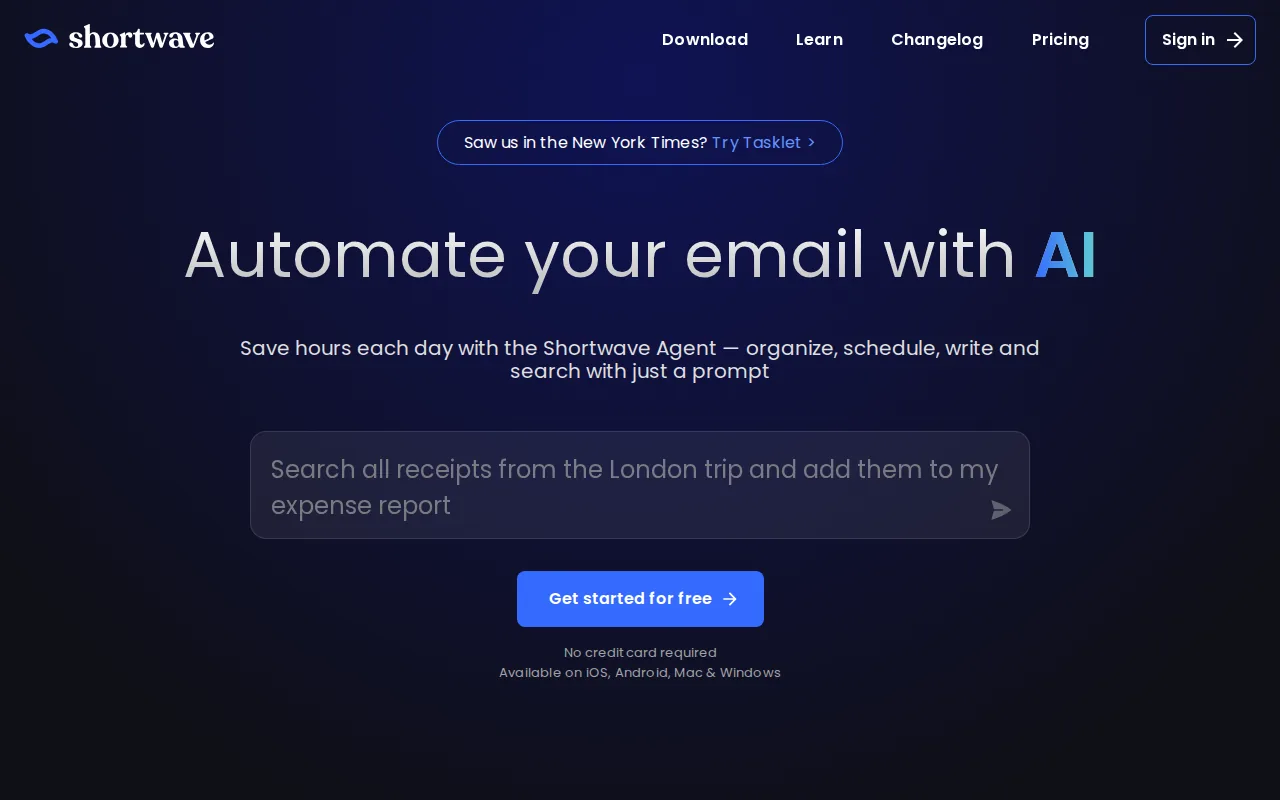
Its key idea is thread bundling. Related messages can be grouped by topic so a long stream of separate emails feels more like one work item. That can help when a project creates many replies and forwards.
Shortwave also focuses on AI support inside the mail experience. It has a free tier available, which gives curious users a lower-friction way to test the basic flow.
Platform fit is the main decision point. Shortwave is Gmail-first, so it makes more sense when your work already lives in Google’s mail system. A team with mixed mail providers should check account support before planning a rollout.
It’s a good pick for organizing conversations. It’s less suited to a user who wants email to update a CRM, file a document, or create a project task automatically.
4. Read AI, cross-channel context for sales teams
Read AI is an AI email assistant for sales teams, account managers, and distributed teams that need context across conversations. It’s best when email is only one part of the customer record.
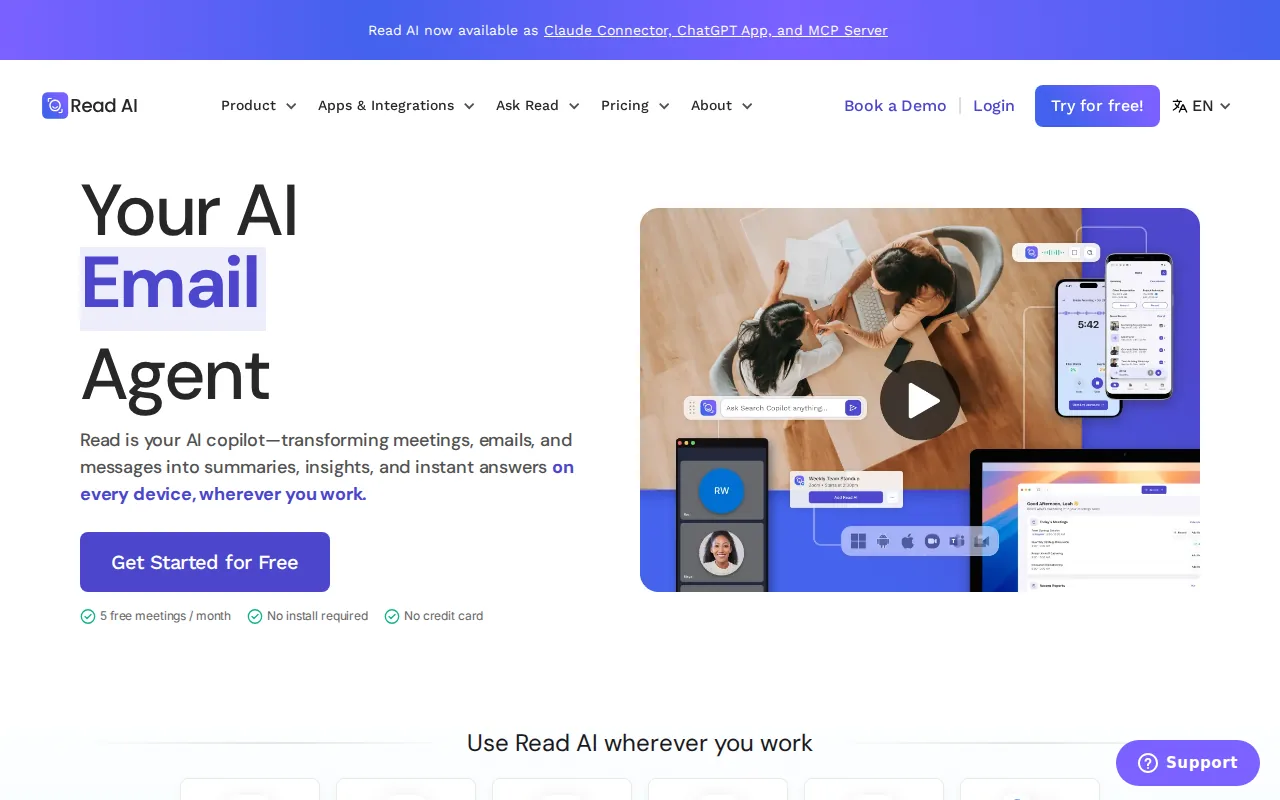
Read AI has a free tier with unlimited enterprise search and five meetings per month. It also has a starting price of $15 per user per month. Confirm current limits before you buy, since usage rules can change.
The product’s appeal is the link between messages and broader work context. A sales user may need to recall what was discussed in a meeting before replying to a customer. A distributed team may need search that reaches across its shared knowledge.
That makes Read AI different from a simple “move this message to a folder” tool. The tradeoff is that teams should review data access, retention, and account permissions before connecting customer content.
Choose it when cross-channel context is the problem. If your real need is to carry out a specific admin job from an email, an email-first operations app may be a closer match.
5. Notion Mail, email connected to notes and projects
Notion Mail is inbox management software for teams that already work inside Notion and Google Workspace. It’s best for users who want email close to notes, tasks, and project information.

The main draw is the connection between email and a Notion workspace. Instead of treating a message as a closed conversation, a team can relate it to the notes or project work that surrounds it.
This can help with client work. A team might keep a project brief in Notion, then use email as the place where approvals and new requests arrive. Keeping those pieces near each other reduces the need to search across separate systems.
The catch is platform dependence. Notion Mail makes the most sense when Notion is already the team’s shared work space. If your team uses another notes or project system, the connection may add little value.
It also belongs more to the organization side of inbox management than to operational delegation. For example, it can help you understand where a message belongs. ForwardThis can act on an instruction such as “Save this email to the Acme project in Notion.”
6. Copilot in Outlook, native assistance for Microsoft 365 teams
Copilot in Outlook is an AI email assistant for organizations that already run on Microsoft 365. It’s best for teams that spend the day in Outlook and don’t want another mail client.

Its main advantage is adoption. The assistant sits inside a tool employees already know, so the team doesn’t need to move every mailbox into a new interface.
Native access also creates a clear boundary. Copilot can help with the email itself, but buyers should check which connected business actions are included in their plan. An assistant that drafts a reply is different from one that updates a deal or creates a task elsewhere.
Microsoft 365 teams should start here before adding another AI mail app. The main question is whether your bottleneck is writing and reading, or the admin that follows the message.
7. Gemini in Gmail, AI help inside Google Workspace
Gemini in Gmail is an AI email assistant for Google Workspace users who want help with drafts and scheduling inside Gmail. It’s best for teams already using Gmail, Google Drive, and Google Calendar.

Gemini can use Google Drive and Calendar context when helping with drafts and scheduling. That matters when an email depends on a document or a meeting slot already stored in Google Workspace.
For instance, a user may need to suggest times for a client call while checking their existing calendar. Keeping that work inside Gmail can be easier than moving the thread into a separate scheduling product.
Still, drafting and scheduling are not the same as admin automation. If a message says, “Add this lead to HubSpot, save the proposal, and remind me Friday,” you need an action layer that can reach those systems.
Google users should compare the included AI features with the work they actually repeat. Gmail may solve the message. ForwardThis is designed for the jobs the message creates after you read it.
8. SaneBox, automatic filtering without changing email clients
SaneBox is inbox management software that sorts low-priority email without asking you to switch email clients. It’s best for users who want a smaller inbox and prefer to keep Gmail, Outlook, Apple Mail, or another familiar service.
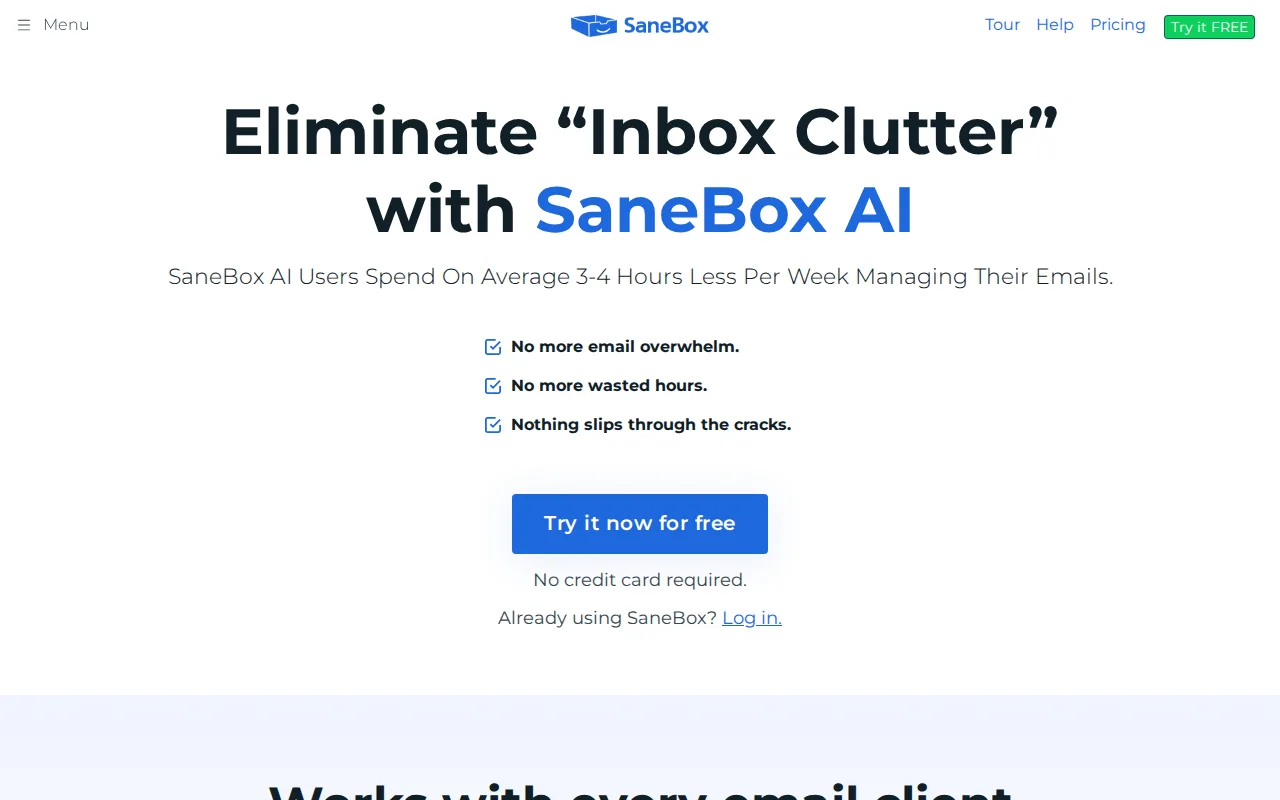
The service uses behavior-based sorting to move less urgent messages away from the main inbox.
That approach is simple. You keep the email client you know, while SaneBox works around it. SaneBox offers a trial rather than a permanent free tier.
Privacy deserves attention here. SaneBox says it looks at basic message details such as sender, subject, and date, and says it doesn’t store full emails or attachments. Read the current privacy terms before connecting a business mailbox.
The limitation is scope. SaneBox is built to sort and reduce interruptions. It won’t turn an email into a CRM update or file an attachment into a project folder.
9. Bloomerang, email automation for growing nonprofits
Bloomerang is nonprofit software that combines fundraising, donor management, and volunteer engagement. It’s best for smaller and growing nonprofits that need supporter records and outreach in one system.
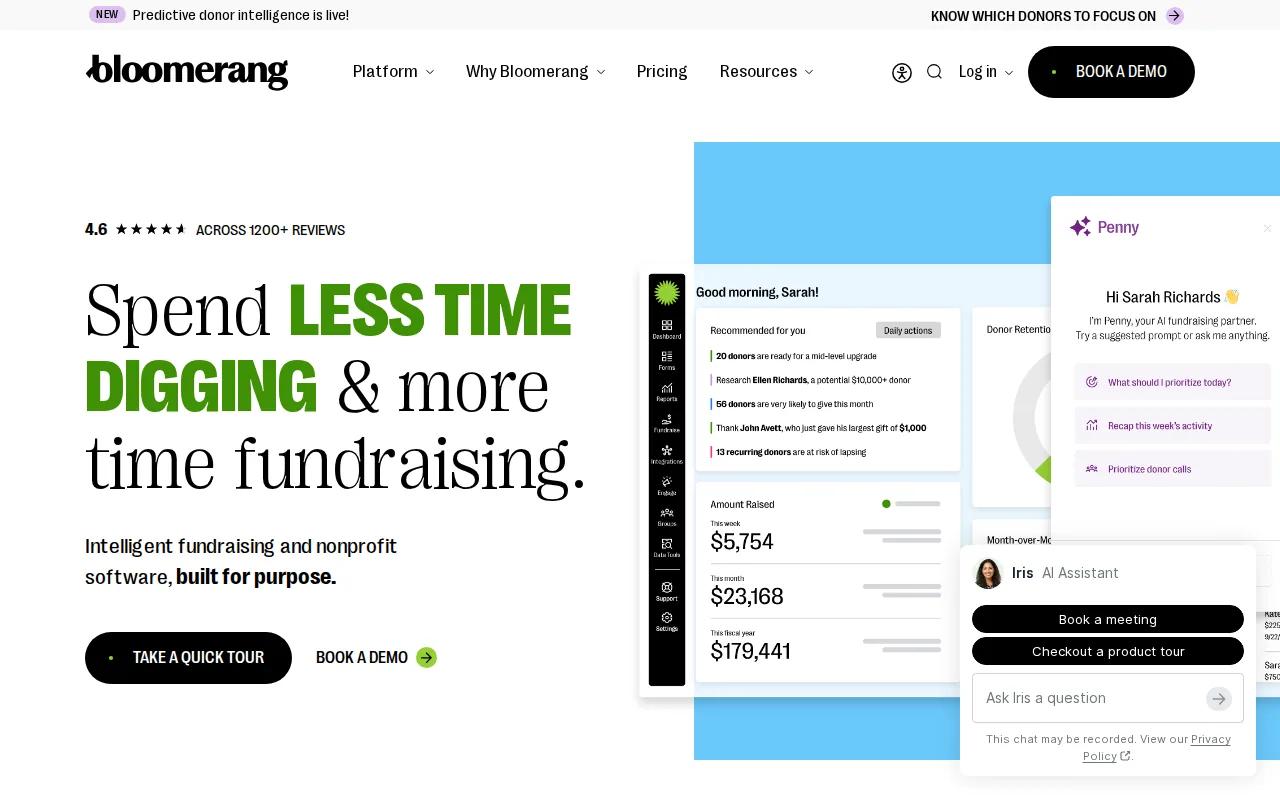
Bloomerang fits the email automation category, yet it is a nonprofit CRM rather than a general inbox assistant.
Its email builder includes an AI Content Assistant.
That makes Bloomerang a category fit for a nonprofit team, not a general answer for someone trying to keep personal email under control. Pricing varies by plan and product. Confirm current pricing and plan details with the vendor.
Pick Bloomerang when donor relationships are the center of the work. If the request is “save this proposal in Drive and create a follow-up task,” choose a tool built around that cross-app action instead.
The platform combines fundraising tools, donor management, and volunteer engagement. That scope is useful context when a search result calls it an inbox tool.
10. Shared inbox platforms for collaborative team email
Shared inbox platforms are built for collaborative team email, such as support@, sales@, or info@ addresses. They’re best for teams that need ownership, internal notes, routing, and visibility across a group mailbox.

A shared inbox lets several people work from one address while keeping their own accounts. Team members can see what is new, what is assigned, and what still needs a response.
Look for these functions when customer or group email is the main problem:
- Assignment, so one person owns the next reply.
- Collision detection, so two people don’t answer the same message.
- Internal notes, so staff can discuss a request without exposing the discussion.
- Rules, so messages can route by sender, subject, or message content.
- Reports, so managers can review volume and response times.
Shared inbox software is a different category from personal inbox sorting. It manages teamwork around a mailbox. It may include ticketing, canned replies, service-level tracking, or chat channels, but those additions can raise cost and setup time.
Choose this type when several people answer the same address. If one person receives an email and needs to update several business systems, ForwardThis may be the lighter route. For example, you can send email to Notion by forwarding it instead of setting up a shared team queue.
Inbox management software comparison table
The table below uses a decision view rather than a simple price list. Pricing changes, and many products in this category don’t publish a clear starting price. Read AI and Superhuman have listed starting prices.
| Option | Best fit | Main job | Platform or scope | Watch out for |
|---|---|---|---|---|
| ForwardThis | Cross-app admin | Carry out instructions from email | Works with normal email and business apps | Not mainly an inbox sorter |
| Superhuman | High-volume users | Fast triage and drafting | Gmail and Outlook focus | $30 per user per month listed as a starting price |
| Shortwave | Gmail users | Thread bundling and AI help | Gmail-first | Less useful for mixed mail systems |
| Read AI | Sales and distributed teams | Cross-channel context | Email and meeting context | Check usage limits and data access |
| Notion Mail | Notion teams | Email near notes and projects | Notion and Google Workspace | Best value depends on existing Notion use |
| Copilot in Outlook | Microsoft 365 teams | Drafting and email support | Outlook-native | Check plan and connected-action limits |
| Gemini in Gmail | Google Workspace teams | Drafting and scheduling | Gmail, Drive, and Calendar | Writing help is not full workflow automation |
| SaneBox | People who want fewer distractions | Low-priority filtering | Works with an existing email client | Trial model and privacy terms need review |
| Bloomerang | Growing nonprofits | Donor and email operations | Nonprofit CRM and fundraising | Too broad for ordinary inbox cleanup |
| Shared inbox platforms | Support and group addresses | Assignment and team handling | Shared mailbox or helpdesk | May add setup and per-user costs |
Four of the eight named inbox products are marketed as AI email assistants, three focus on inbox management, and Bloomerang is the lone email automation CRM. The labels overlap, so judge each product by the job it completes.
Security also belongs in the comparison. Email tools may handle customer details, contracts, or financial files. A dedicated email security product illustrates why threat protection and data control should be reviewed separately from inbox convenience.
What to look for in inbox management software
Start with the work that happens after you read an email. If the answer is “reply,” sorting and drafting tools may be enough. If the answer is “update a CRM, save a file, create a task, and set a reminder,” look for app actions rather than inbox polish.
Then check these points:
- Access: Does the product need your whole mailbox, or only messages you send to it?
- Platform: Does it fit Gmail, Outlook, both, or another provider?
- Automation: Can it handle one fixed rule, or can you give a different instruction for each email?
- Team work: Do you need assignment, internal notes, collision detection, and response reports?
- Integrations: Can it reach the CRM, task app, file store, calendar, or database you already use?
- Cost: Is there a free tier, a trial, per-user billing, usage billing, or a sales-led quote?
- Undo and approval: Can risky actions wait for approval, and can reversible actions be undone?
For technical teams, an API is the connection layer that lets software exchange data. Google describes API management as a way to build, manage, and secure those connections, which is why integration claims deserve closer review than a long logo list.
Finally, test one genuine email. Don’t judge a tool with a demo message that says nothing. Forward a real but safe request, such as “Save this attachment in the client folder and remind me Friday,” then see whether the result is clear and correct.
FAQ
What is the best inbox management software?
The best choice depends on the job behind your email. Choose ForwardThis when messages create work in CRM, task, file, calendar, or database tools. Choose SaneBox for low-priority filtering, Superhuman for fast personal triage, or a shared inbox platform when several people handle one address.
What is the difference between an inbox assistant and email automation?
An inbox assistant helps you read, sort, summarize, or draft email. Email automation carries out a business action after a message arrives. For example, sorting a message into a folder is inbox help, while adding a lead to a CRM from that message is operational automation.
Is shared inbox software the same as inbox management software?
Shared inbox software is a team-focused part of inbox management software. It helps several people handle one address through assignment, internal notes, routing, and reports. Personal inbox tools usually focus on sorting, search, drafting, or reducing distractions for one user.
Can inbox software work with Gmail and Outlook?
Some inbox management software works with both Gmail and Outlook, while other tools are tied to one ecosystem. Shortwave, Notion Mail, and Gemini in Gmail are Gmail-centered. Copilot in Outlook is built for Microsoft 365. Check account support before you move a team.
How much does inbox management software cost?
Pricing varies by product and team size. Read AI lists a starting price of $15 per user per month and Superhuman lists $30 per user per month. Several other products don’t show a public starting price, so confirm plan limits, trials, storage, and usage fees.
Can I automate tasks that start in email?
Yes, but the right tool depends on how predictable the task is. Fixed rules work well for repeatable workflows. ForwardThis suits messier requests where you read each email and decide what should happen, such as updating a deal, saving an attachment, or creating a follow-up.
Conclusion
Pick the tool that matches the handoff after reading an email. For inbox sorting, start with SaneBox or a platform-native assistant. For team mail, use a shared inbox. For cross-app admin, try ForwardThis with one safe, genuine email and see whether it completes the job without another system to manage.