20 September 2026 · By Sam Thomas
Outlook Slack integration: how to set it up
Learn step‑by‑step how to connect Outlook to Slack, pick email notifications, test the link and turn messages into follow‑up tasks.
Want Outlook messages to pop up in Slack without juggling two apps? Below is the exact walk‑through to get Outlook‑Slack integration running, pick the right alerts, and turn those emails into actionable work.
Table of contents
- Step 1: Choose what you want Outlook and Slack to do
- Step 2: Connect Outlook to Slack
- Step 3: Select the emails Slack should receive
- Step 4: Test the integration and fix common problems
- Step 5: Turn Outlook emails into follow-up work
- FAQ
Step 1: Choose what you want Outlook and Slack to do
First, decide the kind of hand‑off you need. Do you just want a heads‑up when a high‑priority email lands in your inbox, or do you need the full message content in a channel for the whole team? The choice drives the setup you’ll use later.
Slack can give you a simple email address for any channel or DM. Once you have that address, anyone (including yourself) can forward an Outlook email straight into the conversation. To get one, open the channel, click its name in the conversation header, open the Automations tab, select Send emails to this channel and click Get email address. Channel and DM addresses need a paid Slack plan. On any plan, you can use Slack’s Outlook add-in (Step 2) or forward emails to your own DM with Slackbot. Enterprise organisations that are HIPAA compliant can’t send emails to Slack at all, according to Slack’s guide on sending emails to Slack.
Typical use cases:
- Critical client updates that the sales team must see instantly.
- Support tickets that need a quick triage channel.
- Project‑level briefs that you want to archive in a dedicated Slack thread.
Pick the scenario that matches your workflow, then move on.
Step 2: Connect Outlook to Slack
Slack’s own add-in, Slack for Outlook, sends individual emails from Outlook to a channel or DM, and it works on every Slack plan. Head to the Slack for Outlook page in Microsoft AppSource, click Get it now and follow the prompts. If you can’t install it yourself, ask your Office 365 administrator.
After installation, connect Outlook to your Slack workspace. In the Outlook desktop app, click the Slack icon in the toolbar and select Connect to Slack. In Outlook in a browser, open an email, click the three dots icon and select Slack for Outlook.
When the connection is live, open an email, click the Slack icon, pick a channel or person from the drop-down menu and click Send to Slack.
Tip: If the add-in doesn’t work, check that your mailbox is on Office 365. Slack says the add-in doesn’t support on-premise Microsoft Exchange, or Outlook set up to receive mail over POP/IMAP.
Step 3: Select the emails Slack should receive
Not every message needs to clutter a channel. Outlook does the choosing, with a rule that forwards matching mail to the channel’s email address from Step 1.
In Outlook on the web or the new Outlook for Windows, go to Settings > Mail > Rules > Add new rule. In classic Outlook, go to File > Manage Rules & Alerts > New Rule (Microsoft’s guide to rules in Outlook has both). Add conditions for the senders, keywords or subject words that match the alerts you care about. For example, filter on "Urgent" or on a specific client domain. Then set the rule to forward the message to the channel’s email address.
Once your rule is saved, Outlook will automatically forward matching messages to the channel you chose in Step 1.
One catch: Microsoft 365 often blocks automatic forwarding to outside addresses, and the forwarded email then bounces with a 5.7.520 error. Microsoft’s guide to external email forwarding explains the setting your admin controls.
Some emails won’t fit a rule. For those, forward the email to ForwardThis at do@forwardthis.io with an instruction such as “post this in #client-acme” or “draft a reply in Outlook”. ForwardThis shows you any Slack message for approval before it posts. The Outlook Asana Integration: Email and Calendar Guide shows the same approach with Asana tasks.
Step 4: Test the integration and fix common problems
Send a test email from Outlook to the Slack channel address you created. Verify that the message appears with the correct formatting and that any attachments show up.
If you don’t see the post, check these common hiccups:
- Make sure the Slack channel’s email address is still active (admins can delete it).
- If a rule forwarded the email, look for a bounce with a 5.7.520 error, which means your organisation blocks automatic forwarding to outside addresses.
- If the post arrived but nobody was alerted, check your Slack notification settings with Slack’s troubleshooting guide.
After the test passes, ask a teammate to reply in a thread under the post. Keeping the discussion in the thread keeps the channel tidy.
Step 5: Turn Outlook emails into follow-up work
Now that Outlook messages flow into Slack, the next step is the work the email asks for. ForwardThis handles that from Outlook: forward the original email to do@forwardthis.io, add a short instruction like “Create a task in Asana for this client briefing, due Friday”, and ForwardThis creates the task with that due date and replies by email with a record of what it did.
This removes the manual copy‑paste step. You keep the context in Slack while the work lands where it belongs.
Example workflow:
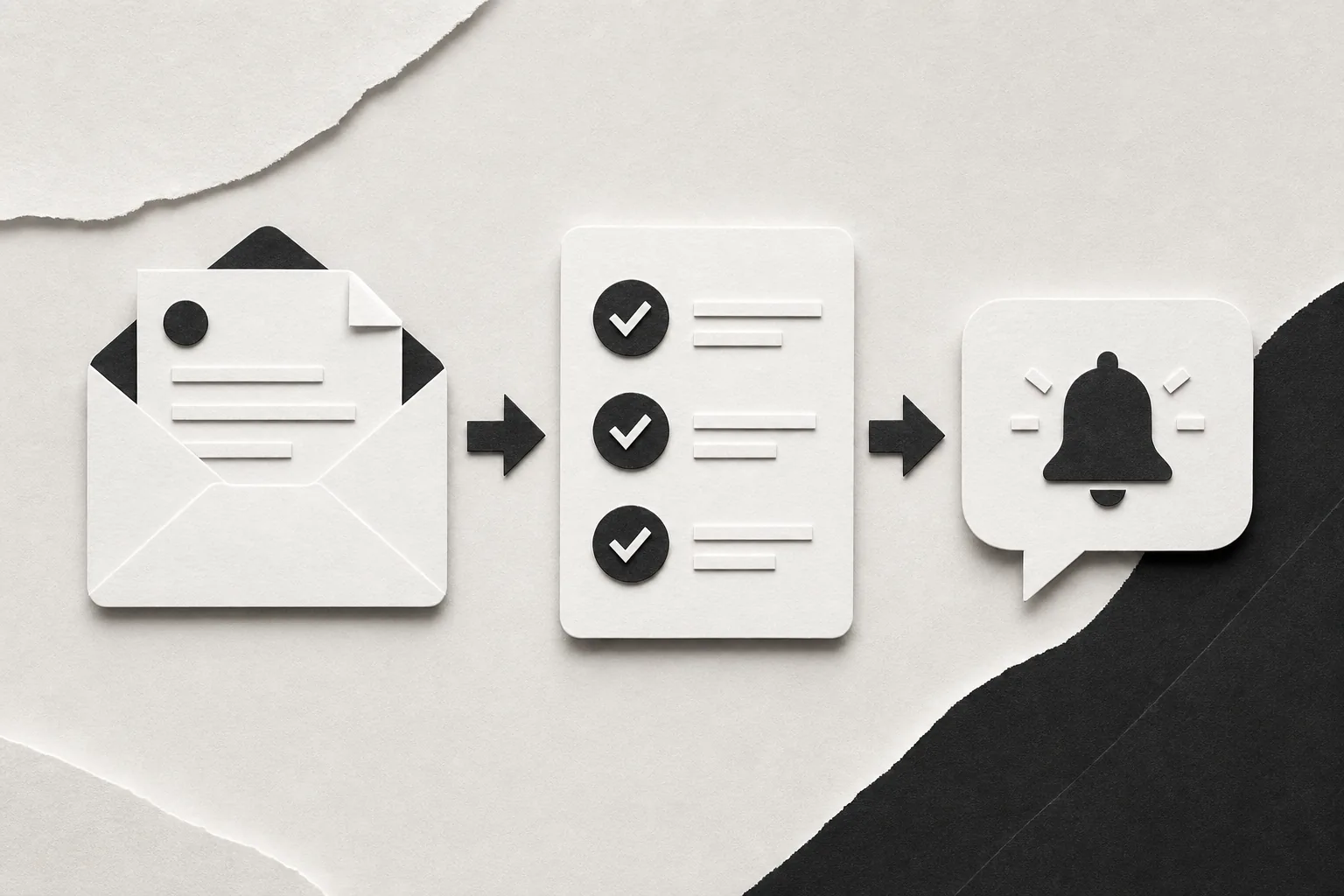
- Outlook email arrives → Slack channel.
- A team member forwards the same email from Outlook to do@forwardthis.io.
- They type at the top: “Make a follow‑up task for John in Asana, due Friday.”
- ForwardThis creates the Asana task, assigns it to John and replies by email with what it did.
ForwardThis can post in Slack too, such as a note in #client-acme that the task exists, and it shows you every Slack message for approval before it is sent.
Because ForwardThis only acts on emails you deliberately forward, you keep privacy tight and avoid granting blanket mailbox access.
FAQ
Can I use the Outlook‑Slack integration on a mobile device?
Yes, you can forward emails from your phone using the channel’s email address.
Do I need admin rights to set up the integration?
Usually not. By default, any member of a channel can get an email address for it, though owners and admins can limit who can create one. If you can’t install the Outlook add-in yourself, your Office 365 administrator can.
What if I want only certain senders to trigger Slack messages?
Create an Outlook rule with those senders as its condition and forwarding to the channel’s email address as its action; any email that doesn’t match will stay in Outlook only.
Is there a way to sync my Outlook calendar status to Slack?
Yes, Slack’s Outlook Calendar app can update your Slack status based on meetings and send event notifications to channels.
How does ForwardThis differ from the native email integration?
The native options copy an email into Slack, while ForwardThis does the work the email asks for. Forward it to do@forwardthis.io with an instruction and ForwardThis can create tasks, update CRM records, post to Slack or draft replies, with no workflow to build first.
Give the Outlook‑Slack pipe a try, then layer ForwardThis on top to turn every important email into an action.
ForwardThis has a free plan with 10 actions a month, and it asks you to connect Outlook or Slack the first time a job needs them.