14 September 2026 · By Sam Thomas
Best Email Management Tools: A Practical Guide
Compare email management tools and learn how to choose, configure, and use the right setup for inbox zero, scheduling, delegation, and tasks.
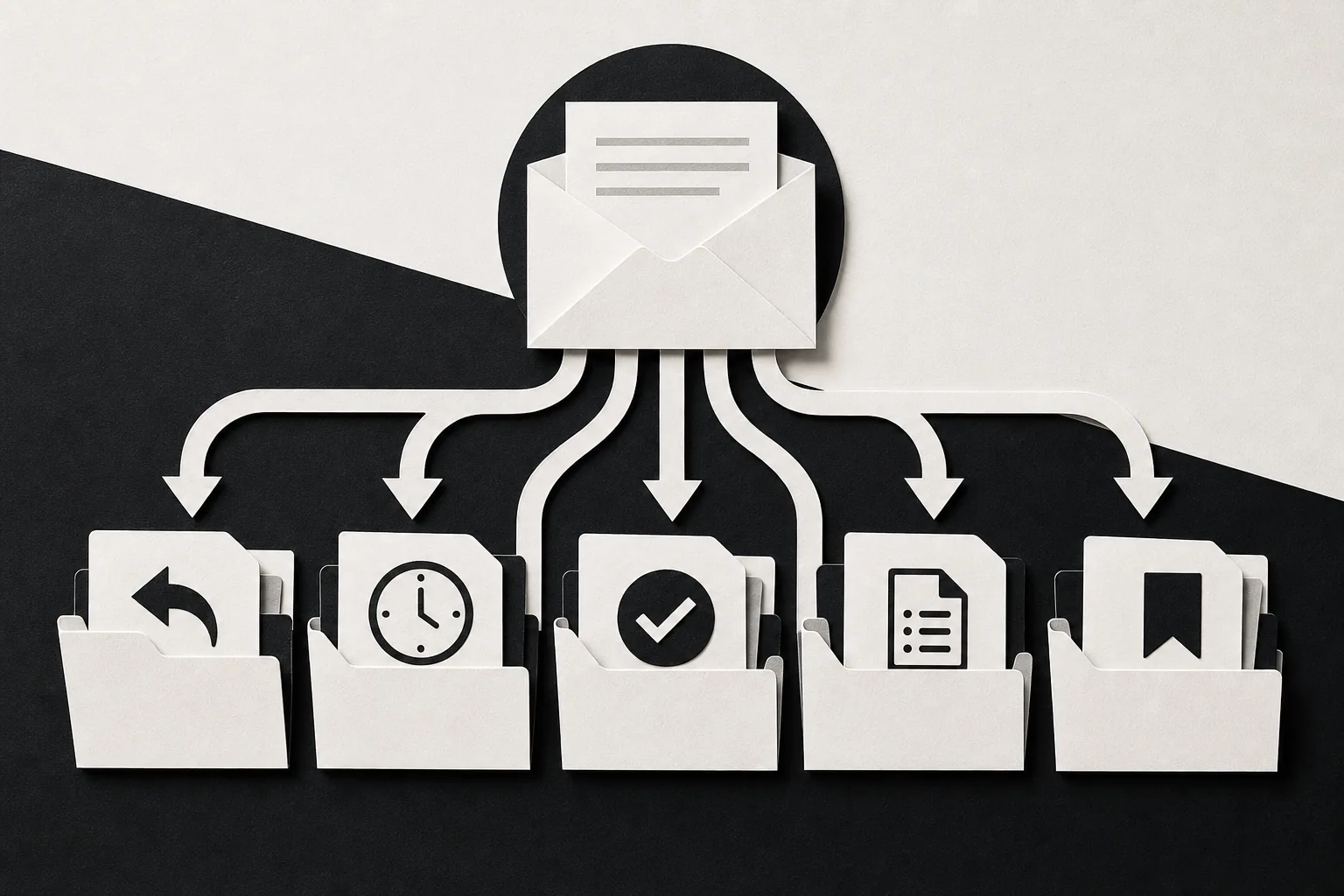
Email can be a task queue, a filing cabinet, or a small daily fire. The right email management tools help, but only when they match the work behind each message. Start with the tool that turns an email into action, then build a simple system for rules, follow-ups, and review.
For most small teams, the best setup isn't a new inbox. It's a clear path from message to result. Here's how to build one.
Table of Contents
- ForwardThis
- Step 2: Compare Email Management Tools by Workflow Fit
- Step 3: Build Inbox Rules, Labels, and Filters
- Step 4: Add Scheduling, Templates, and Better Email Handoffs
- Step 5: Turn Email Into Tasks, Records, and Follow-Ups
- Step 6: Apply an Inbox-Zero Routine Without Losing Context
- Step 7: Test the Setup, Review Pricing, and Protect Access
- Frequently Asked Questions
- Conclusion
1. ForwardThis
ForwardThis is the best fit when an email needs work in another business app. You send or forward the message, write a plain instruction, and ForwardThis carries out the requested action.
That makes it different from inbox cleaners. A filter may move a newsletter. A writing assistant may draft a reply. ForwardThis handles the next job, such as adding a lead to HubSpot or saving an attachment in Google Drive.
Try instructions like these:
- “Add this person to HubSpot and follow up Friday.”
- “Save the attached proposal in the Acme folder in Google Drive.”
- “Create an Asana task for this and make it due next Tuesday.”
- “Add this meeting to my calendar.”
ForwardThis works with normal email. You can use Gmail, Outlook, Apple Mail, or another service that sends standard email. You don't need a new email client, browser extension, or workflow builder.
That matters when the job changes each time. A fixed automation works well when the same trigger should always produce the same result. But client admin is often messier. One email needs a CRM note. The next needs a file saved and a reminder set. A third needs a calendar event.
ForwardThis supports work across CRM, task, file, calendar, database, project, and chat tools. Its listed integrations include HubSpot, Salesforce, Google Drive, Google Calendar, Asana, Notion, Airtable, Slack, Microsoft Teams, OneDrive, Dropbox, Todoist, Trello, Linear, Jira, ClickUp, Monday.com, Zoom, and GitHub.
The handoff is also deliberate. Forwarded email content is treated as information. Only an authenticated instruction from the ForwardThis user can approve an action. Where an action can be safely reversed, the undo period lasts 24 hours. Actions that can't be safely undone need approval first.
ForwardThis retains raw email content briefly rather than keeping everything forever. Its Memory can remember useful context, such as a preferred folder or project. Standing Instructions can set rules like “Always use HubSpot for new sales leads.” Memory fills in context only inside a job you asked it to do.
Email forwarding can route messages to another address for convenience. ForwardThis adds an instruction and an action after the message arrives.
If your admin work starts in email, browse the ForwardThis email automation workflows to see examples by task type. The main caveat is simple: you must deliberately send or forward the message. That extra step is also the safety feature. Nothing happens merely because an email appeared in your inbox.
For agencies, consultants, recruiters, salespeople, and small business owners, this is usually the shortest path from “I need to remember this” to “the work is recorded.”
Step 2: Compare Email Management Tools by Workflow Fit
Email management tools solve different problems. Choose by the work you need done after a message arrives, not by the longest feature list.
Start with one question: does your main problem sit inside the inbox, or does the inbox create work somewhere else?
- Inbox speed: You want shortcuts, search, thread summaries, or fast drafting.
- Shared support: Several people need to assign and answer a common address.
- Noise control: Newsletters and low-priority notices need to leave the main view.
- Fixed automation: The same message should trigger the same steps each time.
- Ad hoc admin: You read the message first, then decide what should happen.
ForwardThis fits the last category. It is built for a person who can say, “Save this PDF in the client folder and remind me Friday,” without designing a workflow first.
Hiver fits teams that handle addresses such as support@ or info@. Its focus is a shared inbox with routing and team work. Front also centers on shared inbox work, with a multi-channel service model. These tools make more sense when several people manage the same stream.
Superhum focuses on moving through an individual inbox. Its research profile points to keyboard shortcuts, thread summaries, drafting help, and inbox sorting. Thunderbird suits people who want a free, customizable email client with themes, add-ons, smart folders, and filters.
Sane Box is aimed at low-priority mail. It moves newsletters and notifications into separate folders and can place unwanted senders in a black hole folder. Spike turns email into chat-style conversations and adds calendar, task, and note features. missive brings messages from email and other channels into one interface.
Zapier and n8n are better comparisons when you need a repeatable automation engine. The trade-off is setup and ownership. More complex branches may need testing, monitoring, retry handling, and clear records of what happened. Our guide to n8n alternatives for email automation is useful when you know you need automation but aren't sure you need a technical workflow builder.
Use this matrix before you pick:
| What you need | Best type of tool | What to test first | Watch for |
|---|---|---|---|
| One-off work from client emails | Email-first action tool | Forward one message with a clear instruction | Approval and undo rules |
| Support@ or info@ coverage | Shared inbox | Assign a message and track ownership | Team permissions and response handoffs |
| Too many newsletters | Inbox filtering service | Move low-value mail out of the main view | Finding mail later |
| Fast personal email work | Productivity email client | Use shortcuts and search on a busy day | Learning curve and monthly cost |
| Repeatable app-to-app process | Workflow automation engine | Run the same trigger several times | Branching, retries, and upkeep |
Outlook users may also want AI help for summaries or drafting. That kind of drafting is still different from changing a CRM record or filing a document.
Make a short test list before paying. Include one routine email, one messy email, one attachment, and one message that needs another person. The winner is the tool that handles your common handoffs with the fewest new steps.
Step 3: Build Inbox Rules, Labels, and Filters
Email management tools work better when your inbox has a small set of clear lanes. Don't build a maze of folders that only you can understand.
Use action-based labels first:
- Reply: You need to send a response.
- Waiting: Someone else owes you an answer.
- Action: The message needs work beyond a quick reply.
- Reference: You may need the message later.
- Read later: It has value, but no deadline.
Keep the list short. A label should answer, “What happens next?” A label named “Clients” may hold hundreds of messages. A label named “Waiting on client” gives you a task view.
Next, set filters for mail that behaves the same way each time. Receipts can skip the main inbox. Automated notices can move to a review folder. Messages from a key client can receive a visual marker without being buried.
In Outlook, conditional formatting can make certain senders or subjects stand out. Quick Steps can move a message to an action folder with one command. In Gmail, labels and filters can perform a similar job. The exact buttons differ, but the rule stays the same: sort by the action you need.
Don't auto-archive messages just because they look familiar. A sender may send both useful updates and low-value notices. Test the rule on a small sample. Check what moved. Then widen it.
Stars and flags are useful for a second pass, not as your whole system. If every message is marked important, nothing is. Reserve the marker for a real priority or a deadline you can see at a glance.
Use a black-hole or blocklist rule for mail you never want to review. Keep an eye on it at first. A silence rule is hard to notice when it hides something you needed.
ForwardThis can sit beside these inbox rules. A filter handles known patterns. ForwardThis handles the odd request that needs judgment. For example, you can keep client messages visible, then forward one with “Save the signed proposal to the Acme folder and create a follow-up task.”
The goal isn't a perfect filing system. It's a clear next action and a reliable way to find the source message later.
Step 4: Add Scheduling, Templates, and Better Email Handoffs
Scheduling and templates remove repeat typing. They don't replace judgment, so set them up around clear limits.
Schedule messages when timing matters
Write the email as normal. Use the send menu to choose a future date and time. Then check the scheduled folder so you can edit or cancel it before it leaves.
Use send-later for time-zone issues, planned announcements, or a follow-up you already know must go out. Don't use it to avoid deciding what the recipient needs. A scheduled vague email is still vague when it arrives.
Build templates with room for detail
A good template handles the repeated frame of a message. Leave the details open:
- Greeting and short context.
- The one action you need from the reader.
- A date or time, if one matters.
- The next step if nobody replies.
Keep one version for a client update and another for an internal handoff. Don't make a single template cover every case. That is how copy-and-paste mistakes happen.
Make handoffs visible
When you delegate, name the owner and the due date in the first lines. Add the original email or a link to it. Say what “done” means.
For example: “Please confirm the contract terms with Acme by Thursday. Reply in this thread when the CRM note is saved.” That sentence gives the next person a job and a proof point.
Some teams use chat beside email for internal discussion. That can work, but don't let the decision live only in a private chat. Put the final status in the task, CRM record, or email thread that others can find.
If a client needs visual help, a short screen recording can explain a process better than a long email. A screen recording can help show a workflow when you need to explain it visually. Use that only when a recording will reduce back-and-forth.
The best handoff is short, specific, and stored where the work will be tracked. Email starts the job. It shouldn't be the only place the job exists.
Step 5: Turn Email Into Tasks, Records, and Follow-Ups
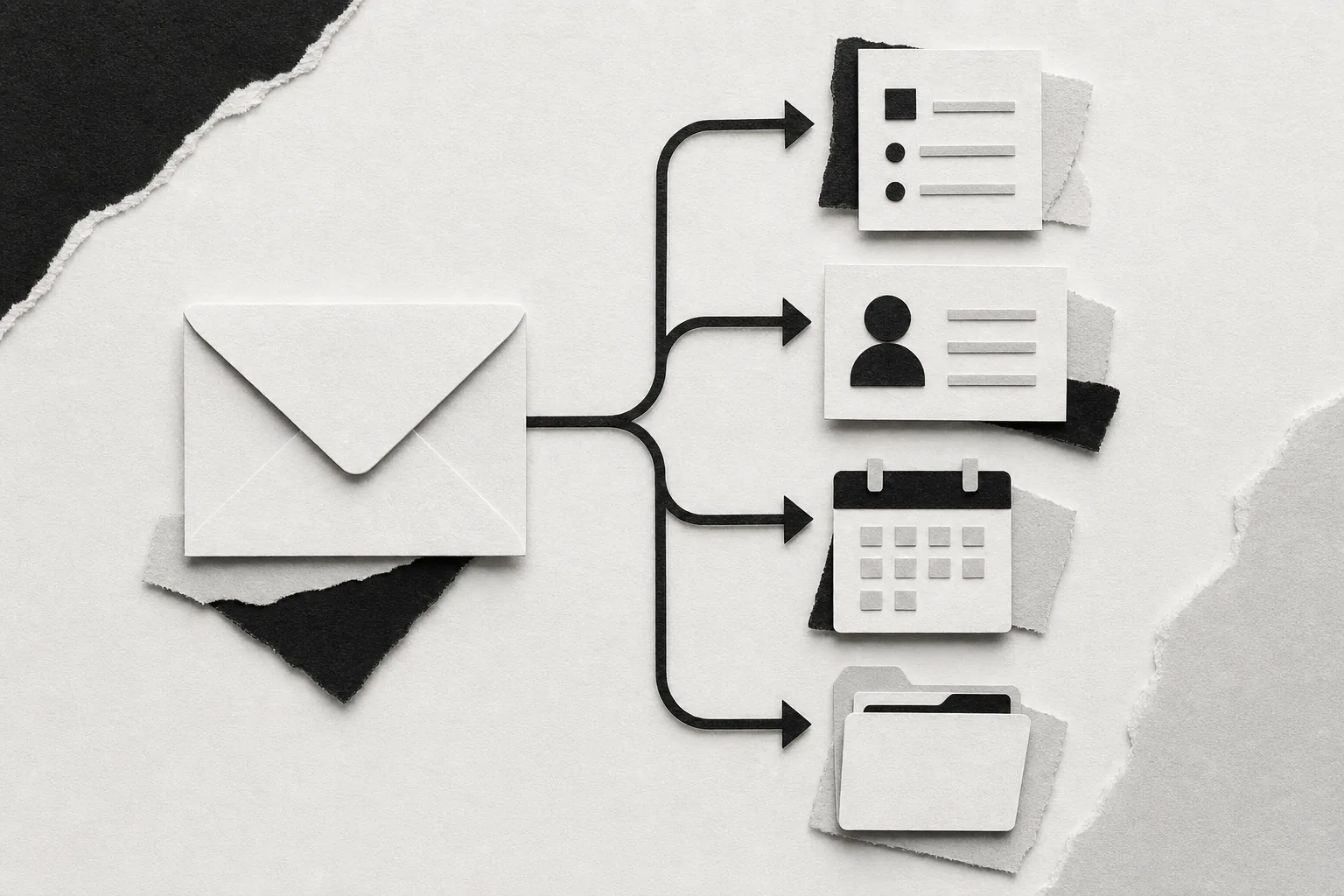
Email management tools become more useful when they move work into the system where it belongs. A message about a deal belongs in the CRM. A project request belongs in the task system. A meeting request belongs on the calendar.
First, decide what kind of object the email should become:
- Task: Someone must perform an action.
- CRM record: The message changes customer or deal context.
- File: An attachment needs a known home.
- Calendar event: A date, time, or meeting needs a shared slot.
- Follow-up: You need a future prompt if nobody replies.
Then capture the minimum useful detail. A task needs an owner and due date. A CRM update needs the right contact or deal. A file needs the correct folder. A calendar event needs a time zone and attendees.
Some email and workspace add-ons can make tasks from messages. They may also connect with products such as Asana, Trello, Jira, Todoist, and other work systems.
That option is useful when you always use the same app and want a button inside the inbox. It may be less useful when the destination changes from one email to the next.
ForwardThis is designed for that variable case. You can forward a message with “Create a task in Asana for this and make it due next Tuesday.” Or write, “Update the deal in HubSpot, save the PDF in Drive, and remind me to chase this Friday.” The instruction tells the system what to do this time.
For Outlook users who prefer native task handling, our guide to Outlook task management covers due dates, follow-ups, and delegation inside Outlook. The key choice is where the task should live. Don't create a second task in another app just because it is easy.
Use a simple naming pattern for tasks. Start with the result, not the email subject. “Confirm Acme renewal terms” is easier to scan than “Re: contract question.” Add the client or project when the owner needs that context.
For CRM work, log the decision as well as the message. “Client approved the revised scope” is more useful than “Email received.” For file storage, include the client and document type in the destination path.
Review the resulting record before you close the email. A saved task with no due date is easy to forget. A CRM note on the wrong deal can be worse than no note.
Once the destination is correct, archive the email or mark it complete. Keep the source message searchable, but don't make the inbox carry the whole history of the work.
Step 6: Apply an Inbox-Zero Routine Without Losing Context
Inbox zero is a review habit, not a demand to answer every message at once. The best email management tools support a routine that keeps action visible without making email your whole day.
Start by turning off nonessential notifications. Constant pop-ups pull you back into scanning mode. Set two or three review windows that fit your role. A support team may need more access than a consultant doing focused client work.
During each review, use the four Ds:
- Delete: Remove mail you don't need.
- Do: Finish a task that takes about two minutes.
- Delegate: Send the work to the right person.
- Defer: Move longer work into a task or action folder.
Don't confuse “read” with “done.” A message can be, call, file, or decision. If it needs more than a quick reply, give it a task with a date.
Use an action folder for work that needs thought. Keep it small enough to review. If the folder becomes a second inbox, add owners and dates or move the work into your task system.
For messages that are waiting on someone else, use a Waiting label or follow-up reminder. Write the next check date in the task. Your memory should not be the reminder system.
Batch low-risk review instead of checking every few minutes, while adapting the schedule to your role.
Don't force yourself to keep the inbox at exactly zero. Some people work better with a small visible queue. The useful test is this: can you tell what needs action without rereading the same message?
Preserve context before archiving. Save the attachment in the right place. Add the decision to the CRM. Link the task to the original thread. Then archive the email so it no longer competes with unfinished work.
ForwardThis can help with the handoff stage. If an email contains a small job you would give to an assistant, forward it with a direct instruction. You get a completion email back, and the original inbox message can move out of the way.
Give urgent work a separate path. Email is a poor channel for emergencies because people may be away from their inbox. Set a team rule for urgent matters, then keep routine work inside the normal review cycle.
Step 7: Test the Setup, Review Pricing, and Protect Access
Before you commit to any email management tools, run a small trial with messages that look like your real work. A polished demo can hide weak handoffs.
Run four workflow tests
- Send a simple message that needs a quick reply.
- Send a message with an attachment that needs filing.
- Send a request that needs a task and due date.
- Send a message that needs two connected actions.
Record how many clicks each test takes. Check the final destination. Confirm that the person responsible can see the work. Then test an error, such as a missing folder or unclear client name.
Review pricing by use, not by headline plan. Ask how many people need access. Count the actions you expect each month. Check limits on integrations, storage, automation runs, history, and support.
Free plans can be a sensible starting point for solo users and small teams. Paid plans may make sense when you need more automation, shared work, or usage. A free tier is only useful if it supports the job you actually want to test.
ForwardThis has a free plan, with paid plans increasing the number of available actions. Its main safety trade-off is worth noting: reversible actions have a 24-hour undo window. If your team needs an older audit trail or indefinite version history, check that requirement before moving sensitive work through the service.
Protect access by using the smallest permission set that works. Don't give an email tool access to an entire mailbox if forwarding selected messages will do. ForwardThis follows that narrower model: it sees the messages you deliberately send or forward.
Review connected apps twice. Remove an integration you no longer use. Check who can approve actions. Add a Standing Instruction when the rule is clear, such as requiring approval before posting to a team channel.
For CRM work, confirm that records land on the correct contact or deal. For file work, check folder permissions. For calendar work, confirm the time zone and attendee list. A fast wrong action still creates cleanup.
Small businesses should also plan for the day a tool changes. Export important records where possible. Keep a short list of active integrations. Write down the rules that matter so another person can review them.
The right setup should pass a simple test: you understand what happens, you can see where it happened, and you know how to correct it. If any of those answers is unclear, simplify the workflow before adding more automation.
Frequently Asked Questions
What are the best email management tools for small businesses?
The best email management tools for small businesses depend on the work behind each message. ForwardThis fits one-off admin that starts in email and ends in another app. Shared inbox products fit support teams. Inbox clients fit people who need speed, search, or drafting. Start with one repeated job and test the full handoff.
Can email management tools turn emails into tasks?
Yes, some email management tools can turn messages into tasks through add-ons, built-in actions, or automation. The important detail is where the task goes and whether it gets an owner and due date. ForwardThis lets you forward an email with an instruction such as “Create an Asana task for this due Tuesday.”
What is the difference between email automation and inbox management?
Email automation makes a message trigger work, while inbox management helps you sort, read, reply to, or delegate messages. A filter may move a newsletter. Automation may save an attachment or update a CRM. Choose inbox management for internal email control and automation when the message creates work elsewhere.
How do I reach inbox zero without losing important emails?
Reach inbox zero by deciding what happens to each message: delete it, do it, delegate it, or defer it. Archive messages after recording any task, decision, or file that matters. Use a small action folder for longer work, then move that work into a system with an owner and due date.
Are free email management tools good enough?
Free email management tools can be good enough for a solo user with a small workload. Test the limits before relying on one. Check action counts, integrations, shared access, history, and undo rules. A free plan is a useful trial, but it may not cover team permissions or higher message volume.
Conclusion
Choose the tool that matches the job after the email arrives. If you need one-off admin across CRM, files, calendars, and task apps, try ForwardThis with a real message and a clear instruction. Then keep your inbox system small: filter known noise, defer longer work, and review the results before you archive.